Enterprise House Account Maintenance
Initial Screen (Main Search Screen)
-
SignOn to the BackOffice.
-
From the Customer Management / Reports menu, select Enterprise House Account Maintenance.
-
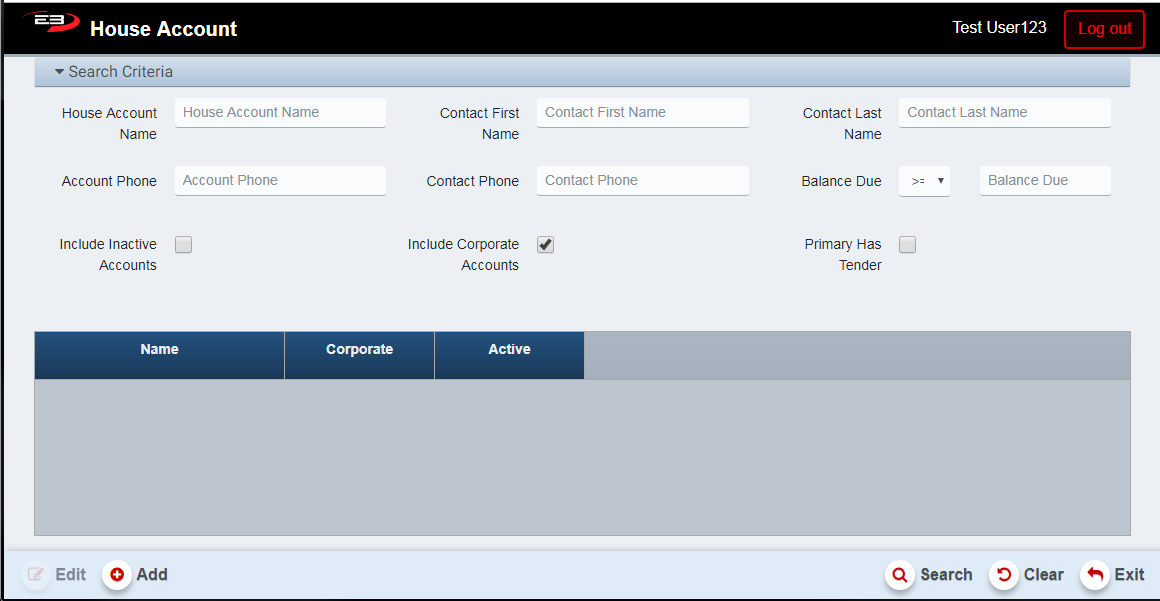
An initial search screen (like the one shown below) should appear:
Screenshot of the Enterprise House Account Maintenance application.
-
Click Clear to clear the results and reset all search criteria to their default values.
-
Enter the first N characters of the account name in the House Account Name to limit results to matching names.
-
Enter at least the first two characters of the Contact First Name to filter by contact(s) first name.
-
Enter at least the first two characters of the Contact Last Name to filter by contact(s) last name.
-
Enter a valid phone number in the Account Phone field to limit search results that match the Phone number entry number on the Billing tab.
-
Enter a valid phone number in the Contact Phone field to limit search results that match any of the phone numbers associated with the house account’s contacts.
-
Use the Balance Due relational operator and amount to limit search results to those accounts that match.
-
Check the Include Inactive Accounts option to include inactive house accounts.
-
Check the Include Corporate Accounts option to include house accounts designated as corporate.
-
Check the Primary Has Tender option to include house accounts whose primary contact has a card on file.
-
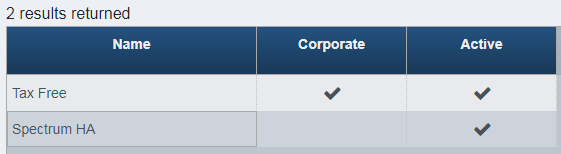
Click Search to return a list of all house accounts for the store, subject to search filter criteria.
Screenshot of the Enterprise House Account Maintenance application.
Adding A House Account
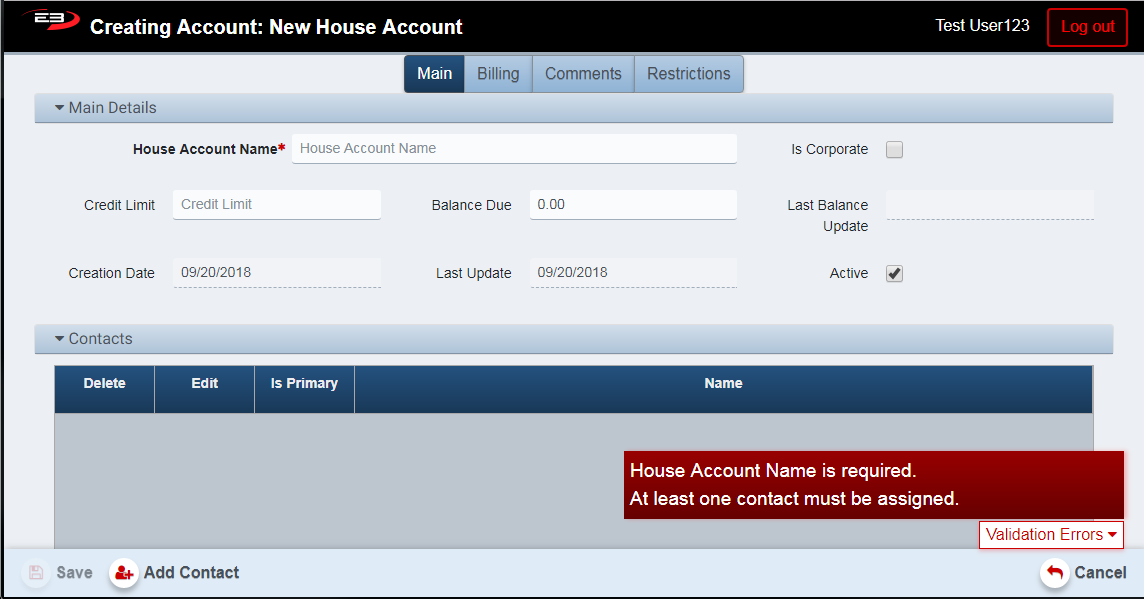
To add a house account, simply click on the Add button at the bottom of the search screen. The house account creation screen is displayed with the Main tab selected.
Screenshot of the Enterprise House Account Maintenance application.
-
The House Account Name is a required field, it must start with a letter, and is limited to 40 characters.
-
Check the Is Corporate box to make the house account visible to all stores, otherwise the house account will only be visible to the store on which it was created.
-
Enter an amount in the Credit Limit field to specify the maximum balance due before payment warnings are generated when the account charges exceed the limit. If this is not specified, the credit amount is unlimited.
-
The Balance Due field indicates how much is due on the account; you can enter this when creating the account, otherwise this is managed by the system that increases the value when charges are made and reduces the value when payments are made against the account.
-
The Last Balance Update field is read-only and indicates when the balance most recently changed by charging or making payments.
-
The Creation Date is read-only and indicates when the account was created.
-
The Last Update date is read-only and indicates when the account was last updated.
-
The Active option defaults to checked (the account is active), this can be changed to deactivate the account.
-
See section 3 for information about the Billing tab.
-
See section 4 for information about the Comments tab.
-
See section 5 for comments about the Restrictions tab.
Adding A Contact To The Account
To add a contact to a house account, click the Add Contact button at the bottom of the screen.
-
At least one contact, designated as the primary contact, is required.
-
The Customer Search/Add screen from Enterprise Customer Maintenance is displayed.
-
Enter either a phone number or the first two characters of both first and last names then click Search.
-
The list of customers matching the criteria is displayed.
-
Highlight the customer you with to add in the results and then click Select.
-
The record for the customer you wish to add is displayed.
-
You can make changes to the customer if needed and then click Save to save the updates.
-
Once you have the desired customer, click Confirm Selection to add the customer to the house account.
-
The contact list appears showing the primary contact.
-
When the contact selection has been confirmed, the Contacts list looks like this:

Screenshot of the Enterprise House Account Maintenance application.
-
A contact can be deleted if it is not the primary contact by clicking the trash can icon under Delete.
-
A contact can be edited by clicking the pencil icon under Edit.
-
You can add additional contacts using the same process. and changing the Is Primary option as desired.
-
If only a single contact is present, it defaults to primary and you can’t change the Is Primary option.
-
If you have multiple contacts for this account, you can change the primary by clicking the Is Primary checkbox.
Billing Tab
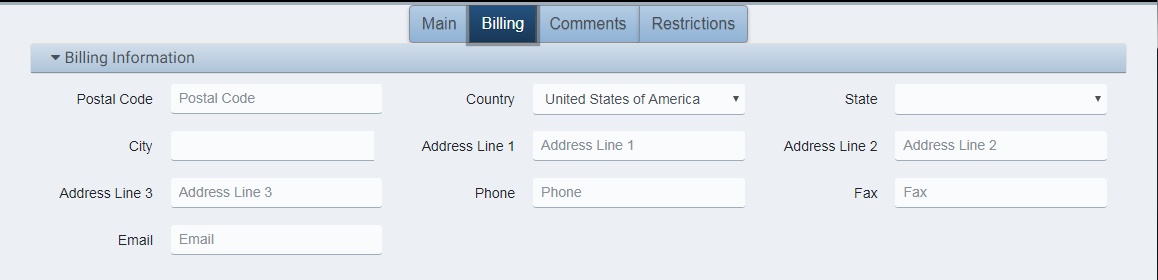
The Billing tab is used to enter information for sending billing information to somebody other than the primary contact. If no billing information is present on this tab, the primary contact’s information is used.
Screenshot of the Enterprise House Account Maintenance application.
-
There are no default values for any of these fields other than Country set to United States of America.
-
Entering the Postal Code will populate the Country, State, and City fields.
-
The various address fields correspond with those used for Customer maintenance.
-
The Phone and Fax fields can be searched using the Account Phone criteria on the search page.
-
The Email field is used for sending email to the person(s) responsible for handling the billing.
Comments Tab
The Comments tab is used to store comments about the account these are visible when the house account is used as a form of tender during a transaction.

Screenshot of the Enterprise House Account Maintenance application.
-
Comments are free-form.
-
Type the comments into the Comments box, click Save to save the comments.
Restrictions Tab
The Restrictions tab is used to specify department-level restrictions on merchandise purchased using the house account as a tender during the transaction. For example, if the box next to Service Plans is unchecked then any attempt to purchase something from the Service Plans department will generate a warning that a restricted item was detected and gives the operator to either void the item(s) or perform a manager override to allow the item(s) to be purchased.
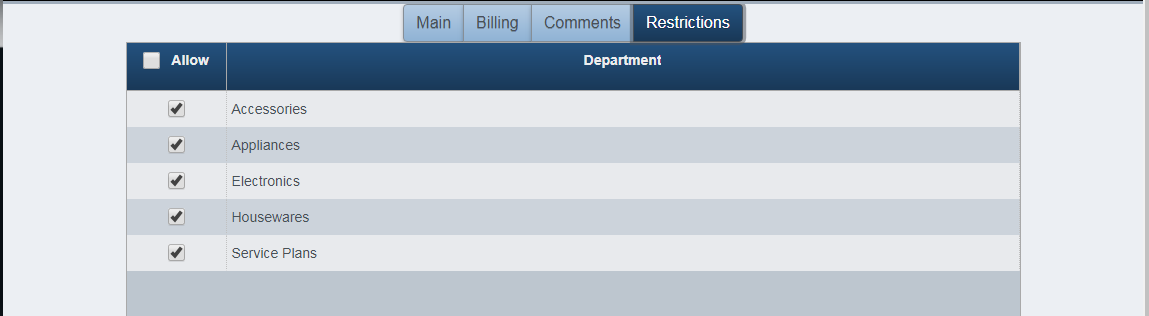
Screenshot of the Enterprise House Account Maintenance application.
-
Click the Allow checkbox to either allow or decline all departments.
-
Clicking the checkbox next to a department will allow or restrict items for that particular department only.
Editing A House Account
To edit a house account, use the search process described in section 1, highlight the house account you want to edit, and then click the Edit button at the bottom of the screen. The selected house account is opened in edit mode.
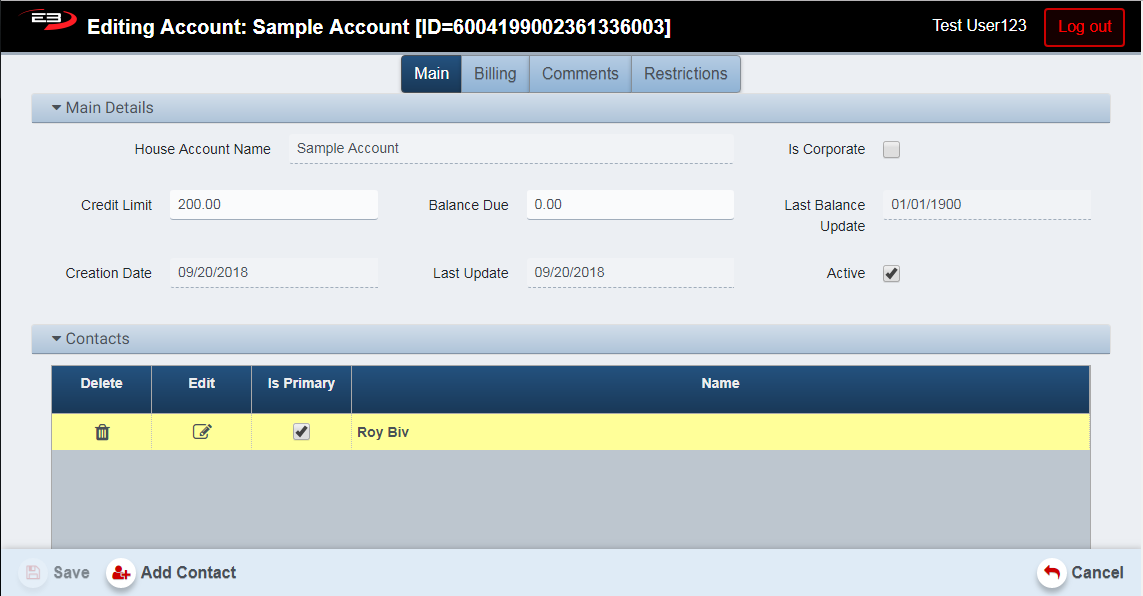
Screenshot of the Enterprise House Account Maintenance application.
-
The title bar indicates that you are in edit mode.
-
All of the tabs are available for modification.
-
You are not allowed to change the House Account Name once the house account has been saved.
-
You can change any of the fields on the Billing tab.
-
You can add, delete, or modify any of the entries on the Comments tab.
-
You can modify any of the department selections on the Restrictions tab.
-
Click Cancel to return to the main search screen.