Geographic Region Maintenance
Initial (Main Search) Screen
-
SignOn to the BackOffice.
-
From the Support > Alert Viewer menu, select Geographic Region Maintenance.
-
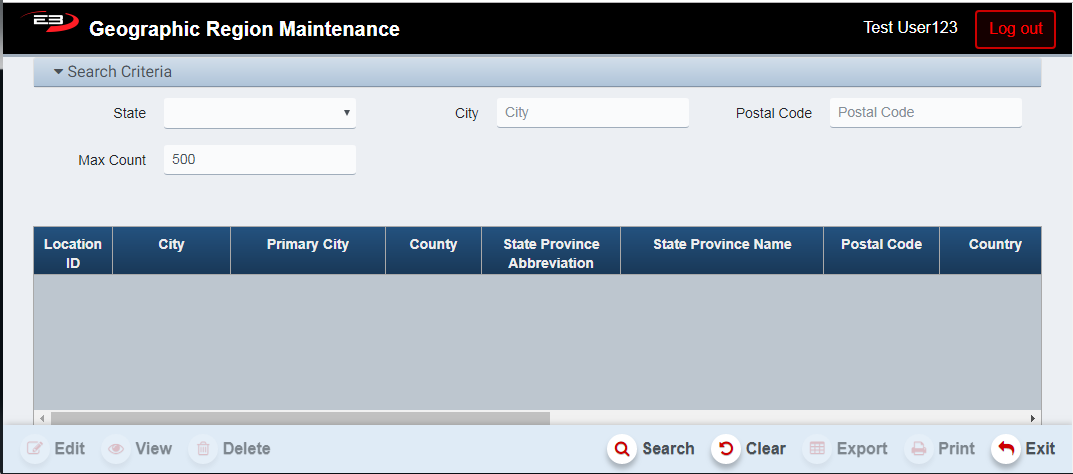
An initial search screen (like the one shown below) should appear:
Screenshot of the Geographic Region Maintenance application.
-
There are a number of search criteria available to filter the search results:
-
State - this contains a list of cities and territories for the United States of America and Canada.
-
City - enter the complete city name to search.
-
Postal Code - enter the postal or zip code to search, cities may have multiple postal codes.
-
Max Count - enter the maximum number of results to return.
-
-
Click Search to perform the search.
-
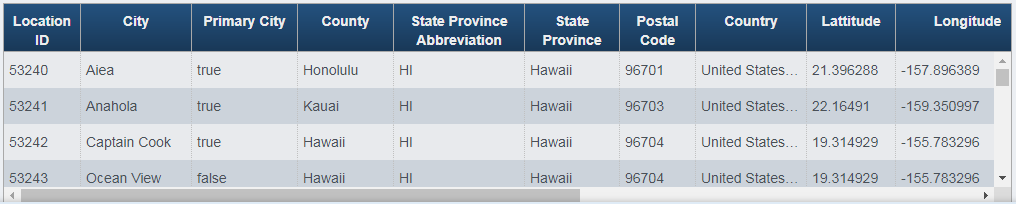
You should see the results like the following, filtered by the search criteria:
Screenshot of the Geographic Region Maintenance application.
-
Click Exit to leave the application.
-
When there is data in the result grid, the Export and Print buttons are enabled.
-
When a row in the result grid has been selected; the Edit, View, and Delete buttons are enabled.
Result Columns
The results are displayed in a grid with the following columns, one row for each location.
-
Location ID - this is the internal location ID for the entry.
-
City - this is the name of the city.
-
Primary City - if true, this entry is the primary city for the zip code.
-
County - this is the county where the city is located.
-
State Province Abbreviation - this is the state or province abbreviation, typically used for mailing.
-
State Province - this is the state or province where the city is located.
-
Postal Code - this is the postal code (possibly one of several) for the city.
-
Country - this is the country where the city is located; either United States of America or Canada.
-
Latitude - this is the latitude for the city.
-
Longitude - this is the longitude for the city.
-
Record Update Date Time - this is the last time the record was updated.
-
Record Update User - this is the last operator to modify the record.
Modifying Geographic Region Data
By selecting a row in the search results and clicking the appropriate button; you can Edit, View, or Delete region data.
Editing Geographic Region Data
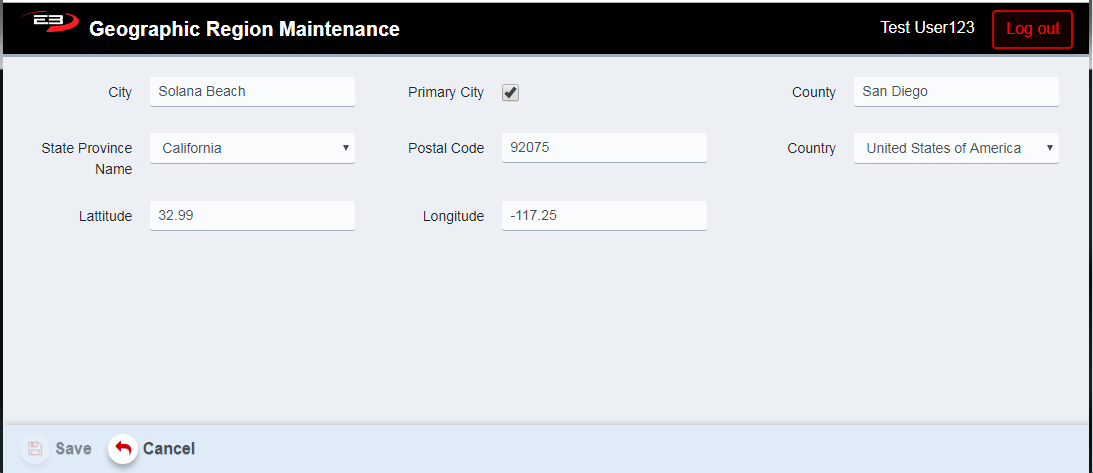
To edit geographic region data, set the search criteria to reduce the search results and then click Search. Click on the row in the results you wish to modify and then click Edit, this opens the edit window which looks like this:
Screenshot of the Geographic Region Maintenance application.
All of the values on the edit screen may be changed as follows:
-
City - enter the City name, there is no validation on spelling.
-
Primary City - if this city is a Primary City, check this option.
-
County - enter the County name, there is no validation on spelling.
-
State Province Name - select the State or Province name from the drop-list.
-
Postal Code - enter the Postal Code, there is no validation for length or content.
-
Country - select the Country from the drop-list, United States of America and Canada are supported.
-
Latitude - enter the Latitude value of the location, only digits, plus or minus, and period are supported.
-
Longitude - enter the Longitude value of the location, only digits, plus or minus, and period are supported.
When you are finished modifying the data, click Save to save your changes or click Cancel to discard your changes and return to the main search screen.
Viewing Geographic Region Data
To view the geographic region data, highlight the row in the search results and click View. The screen looks just like the editing screen except that none of the values can be modified. Click Exit to return to the search screen.
Deleting Geographic Region Data
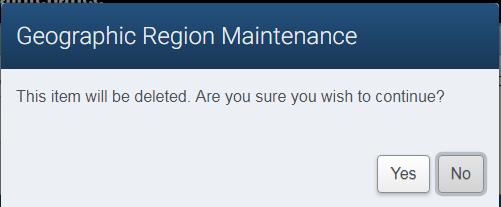
To delete geographic region data, highlight the row in the search results and click Delete. A confirmation dialog appears that looks like this:
Screenshot of the Geographic Region Maintenance application.
-
Click No to retain the record and return to the search results.
-
Click Yes to confirm you want to delete the record, then click OK on the dialog indicating the record was deleted.
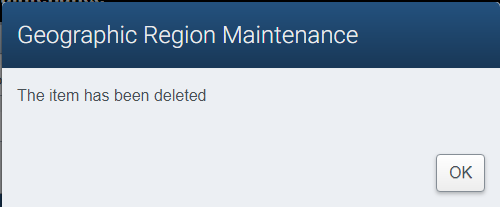
Screenshot of the Geographic Region Maintenance application.
- This returns to the search screen.
An operator can neither restore a deleted record nor create a new record using this application !!!
Other Commands
Export
The Export function allows the user to save the report as a comma-separated values (CSV) file for use in Excel. Once you have a result set that’s filtered as desired, click the Export button. The file is saved as GeographicRegionMaintenance_yyyy-mm-dd.csv in the default location, typically the Downloads folder for the user.
The Print function allows the user to save the report as an Acrobat PDF file for viewing/printing in Adobe Acrobat Reader. Once you have a result set that’s filtered as desired, click the Print button. The file is saved as Geographic Region Maintenance.pdf in the default location, typically the Downloads folder for the user.