Global Item Maintenance
Initial (Main Search) Screen
-
From the Item Pricing / Data Management menu, select Global Item Maintenance.
-
An initial search screen (like the one shown below) should appear.
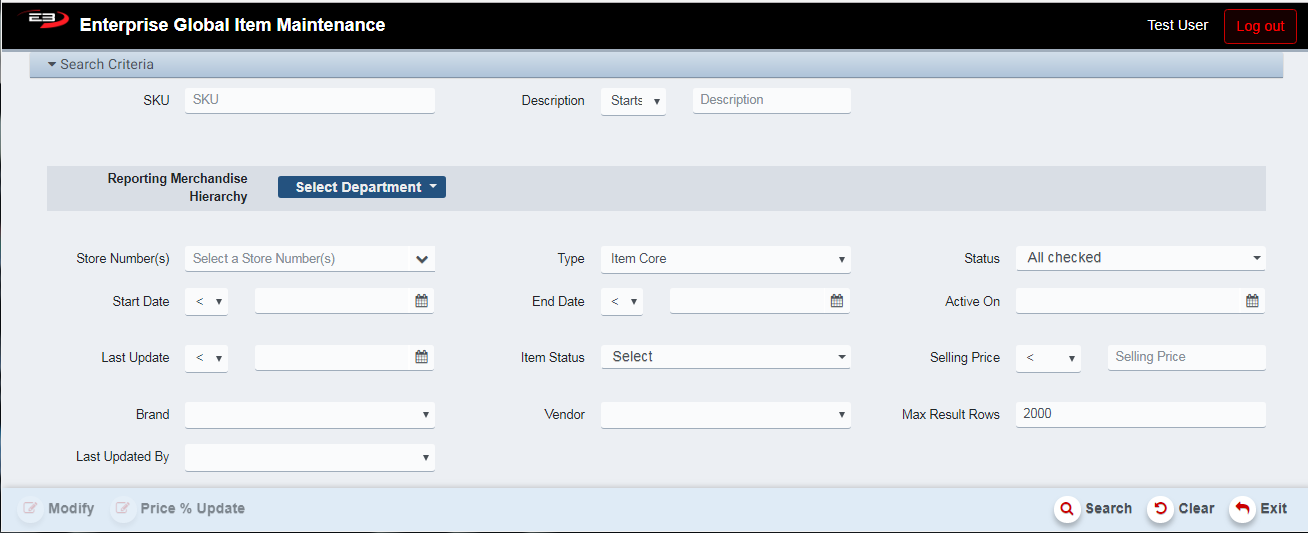
Screenshot of the Global Item Maintenance application.
-
All search criteria are optional for Global Item Maintenance.
-
If you have visibility to multiple stores, the default is “all visible stores”.
-
If you have visibility to a single store, the default is the single visible store.
-
When the search criteria are set as desired, click Search for a list of items matching the criteria.
-
The results are shown in a grid as seen here, this is the result of an MH-based search for Housewares.

Screenshot of the Global Item Maintenance application.
-
Select one or more items using the checkboxes on the left side of each row.
-
To modify item attributes (including prices), click the Modify button; see section 2.
-
To modify item pricing only, click the Price % Update button; see section 3.
-
Click Clear to clear the results and reset the search criteria to their default values.
-
Click the Exit button to leave Global Item Maintenance
Item Attribute Modification
To modify various attributes, use the Modify function; the same price fields that can be modified with the Price % Update function may also be modified using the Modify function.
-
Select one or more items from the search results.
-
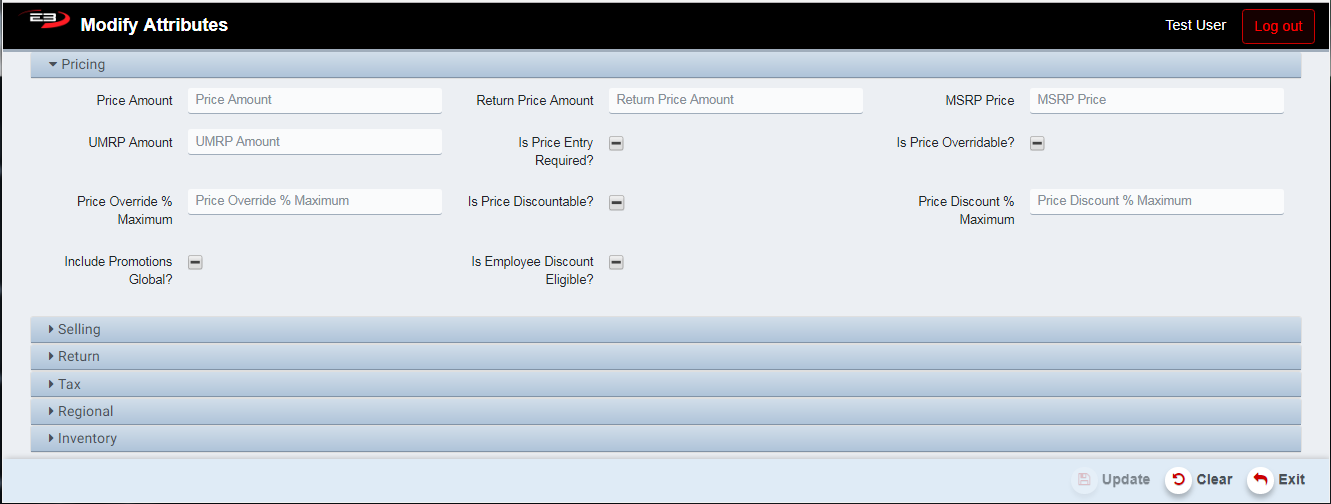
Click the Modify button, the Modify Attributes screen appears as seen here.
-
In this screen shot, the Pricing group is open; all other groups are closed.
-
Click the arrow to the left of a group header to open or close the group.
Screenshot of the Global Item Maintenance application.
-
Note that existing values are not shown; in general, don’t change a field in this application unless you’re certain.
-
Count fields only accept digits.
-
Amount fields only accept digits and a decimal point.
-
Drop-list fields will show blank by default, if nothing is selected the value is not changed.
-
Date fields are entered using a calendar control.
-
Boolean fields are “not changed”, “true”, and “false” as seen here.

Screenshot of the Global Item Maintenance application.
-
When any field is changed, the Update button is enabled.
-
After all desired modifications have been set, click the Update button.
-
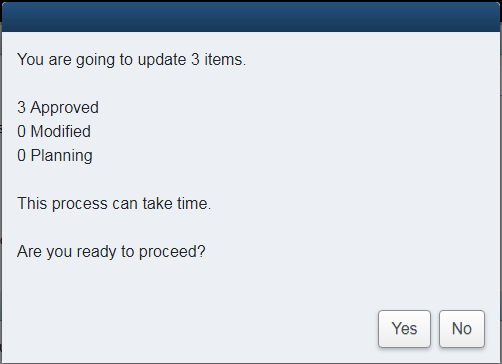
A dialog appears requesting confirmation of the update.
Screenshot of the Global Item Maintenance application.
-
Click No to cancel the update and return to the attributes screen.
-
Click Yes to proceed with the update.
-
A progress dialog appears to track the update.
-
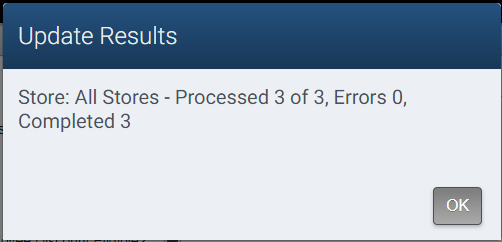
When the update is finished, a success dialog is displayed; click OK to dismiss.
Screenshot of the Global Item Maintenance application.
- After dismissal, the application returns to the search results.
Attribute Groups
Following is a list of the attribute groups for modification:
-
Pricing
-
Selling
-
Return
-
Tax
-
Regional
-
Inventory
Item Price Modification
To modify price settings for items, use the Price % Update function.
-
Select one or more items from the search results.
-
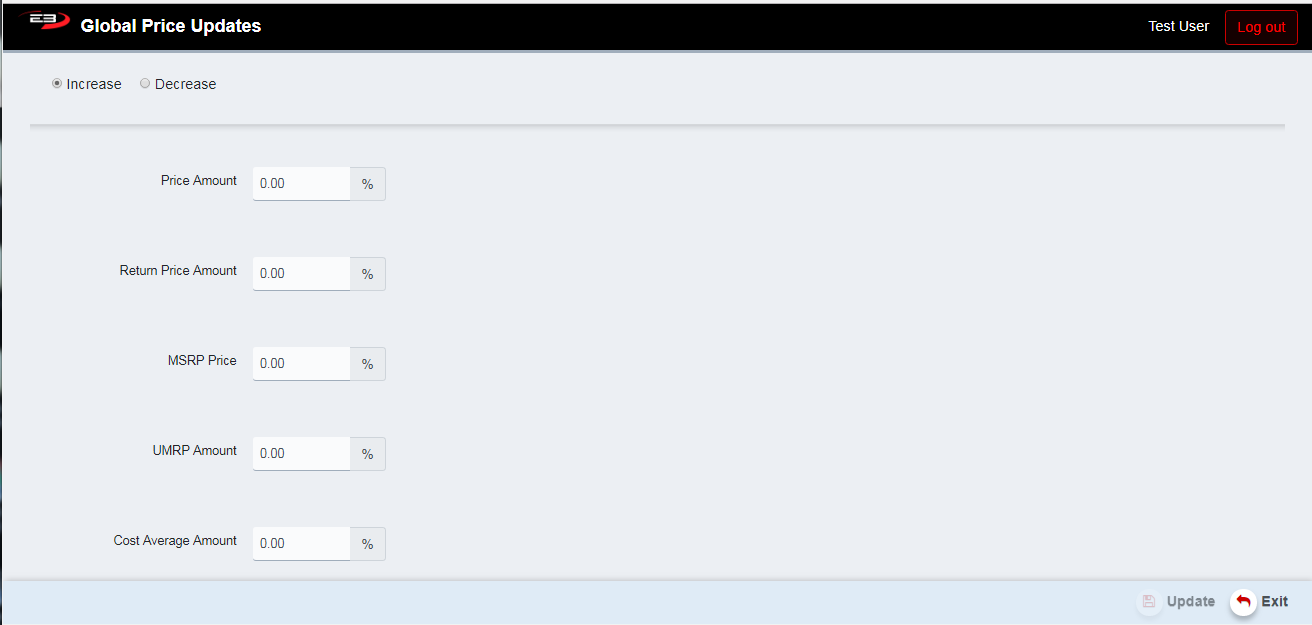
Click the Price % Update button, the Global Price Updates screen appears as seen here
Screenshot of the Global Item Maintenance application.
-
Note that existing prices are not shown.
-
Prices may be increased or decreased, but not in the same operation.
-
Select the Increase option to raise the price(s), select the Decrease option to lower the price(s).
-
Price changes can range from 0 to 20 percent (0 percent means the price is not modified).
-
When a percent has been entered for any of the pricing fields, the Update button is enabled.
-
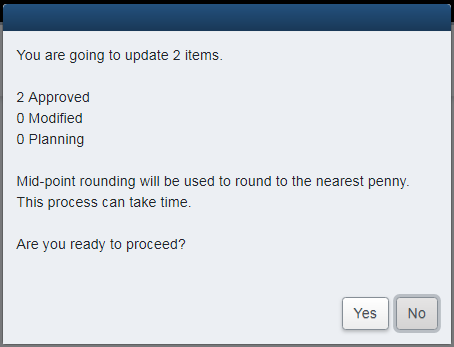
Click the Update button to start the price update process.
-
A confirmation dialog appears as seen here.
Screenshot of the Global Item Maintenance application.
-
Click No to return to the Global Price Updates screen.
-
Click Yes to continue the price update process.
-
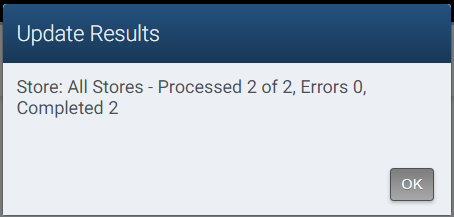
When the price update is complete, a confirmation dialog appears.
Screenshot of the Global Item Maintenance application.
-
Click OK to acknowledge the completion.
-
Click Exit to leave Global Item Maintenance.