Item Maintenance
Initial (Main Search) Screen
-
SignOn to the BackOffice
-
From the Item Pricing / Data Management menu, select Item Maintenance
-
An initial search screen (like the one shown below) should appear
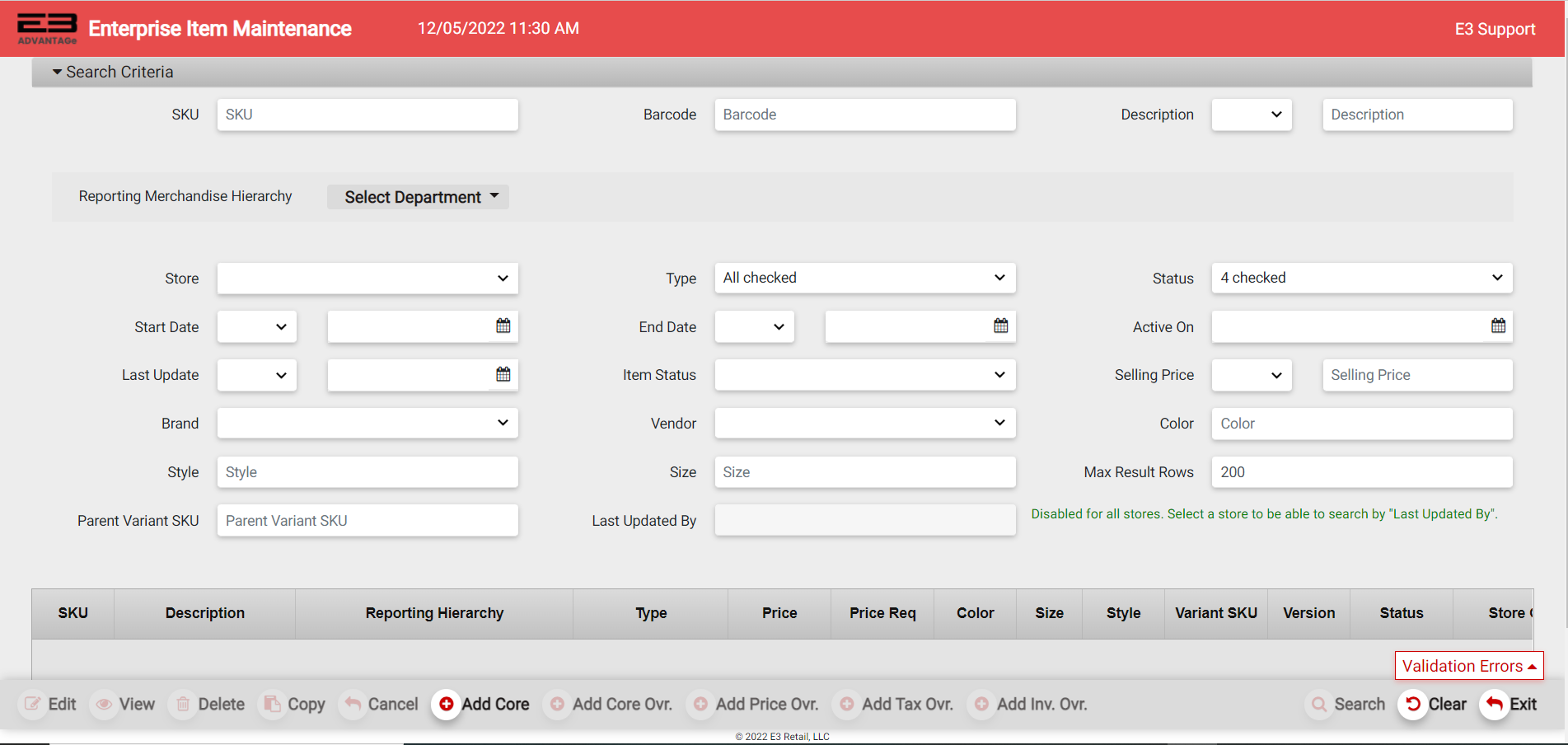
Screenshot of the Item Maintenance application.
Most users are required to enter a store number, and one of the following:
-
SKU,
-
Barcode,
-
Description (min of 3 characters), or
-
The highest level of the Merchandise Hierarchy (DEPT for example)
Once the Store Number and one of these required search values are entered, the Validation Errors are removed.
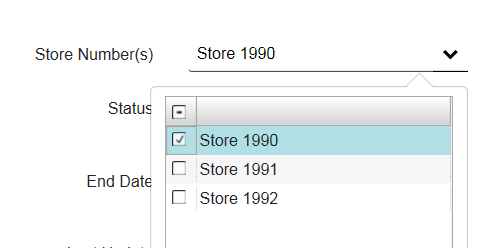
Store (Group) Visibility
-
The user will have visibility to items and item relationships defined for his or her “Visible Store(s) or Store Groups”. The user can look at multiple store(s) (or store groups) or filter on item relationships defined for a specific store (store group).
-
For example, the user can filter on just one store number (store group). When looking at a batch of items and item relationships, it is recommended to filter one one store (or one store group) to minimize search processing and the size of the result set.
Screenshot of the Item Maintenance application.
Item Relationship Types
The base system supports multiple Item Relationship Types:
- A given deployment will only be configured with Item Core and subset of the other item relationship types.
| Item Relationship Name | Description (Overview) |
|---|---|
| Item Core | This is the base record for a given SKU (item). It is typically the default corporate record for the SKU for ALL STORES. An Item Core Relationship is REQUIRED as a pre-requisite to any “override” relationship. |
| Item Core Override | This is basically used when an individual store (or store group) needs to perform extensive overrides to the Item Core Relationship for a given SKU. During a Price Lookup at POS, the Item Core record is retrieved and overridden with Item Core Override attributes. |
| Item Price Override | This is not used in conjunction with Item Core Overrides. It is typically used when a group of stores need exception pricing to the default pricing defined in the Item Core Relationship for a given SKU. |
| Item Tax Override | This is not used in conjunction with Item Core Overrides. It is typically used when a group of stores need exception tax attributes to the default ones defined in the Item Core Relationship for a given SKU. |
| Item Inv. Attributes Override | This is not used in conjunction with Item Core Overrides. It is typically used when a group of stores need exception inventory attributes to the default ones defined in the Item Core Relationship for a given SKU. |
Users, based on their security resource permissions, are restricted to certain Item Relationship Types. Likewise, certain users will have the Item Relationship Type search criteria defaulted automatically for them upon execution.
Merchandise Hierarchy
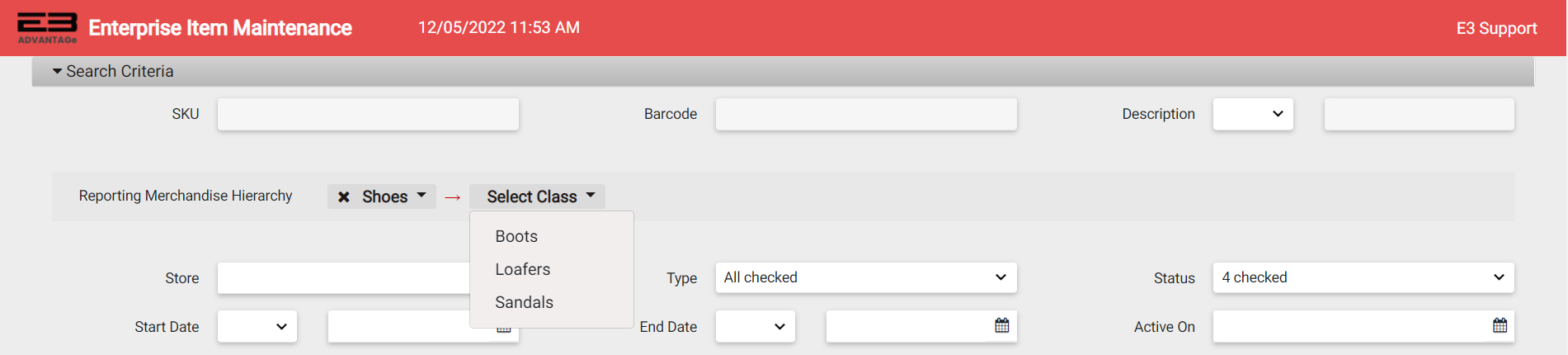
Except when searching for a specific SKU, it is “PRUDENT” for the user to restrict the result set to a reasonable size; therefore, the user is strongly encouraged to filter (aka search) on a given Merchandise Hierarchy.
Screenshot of the Item Maintenance application.
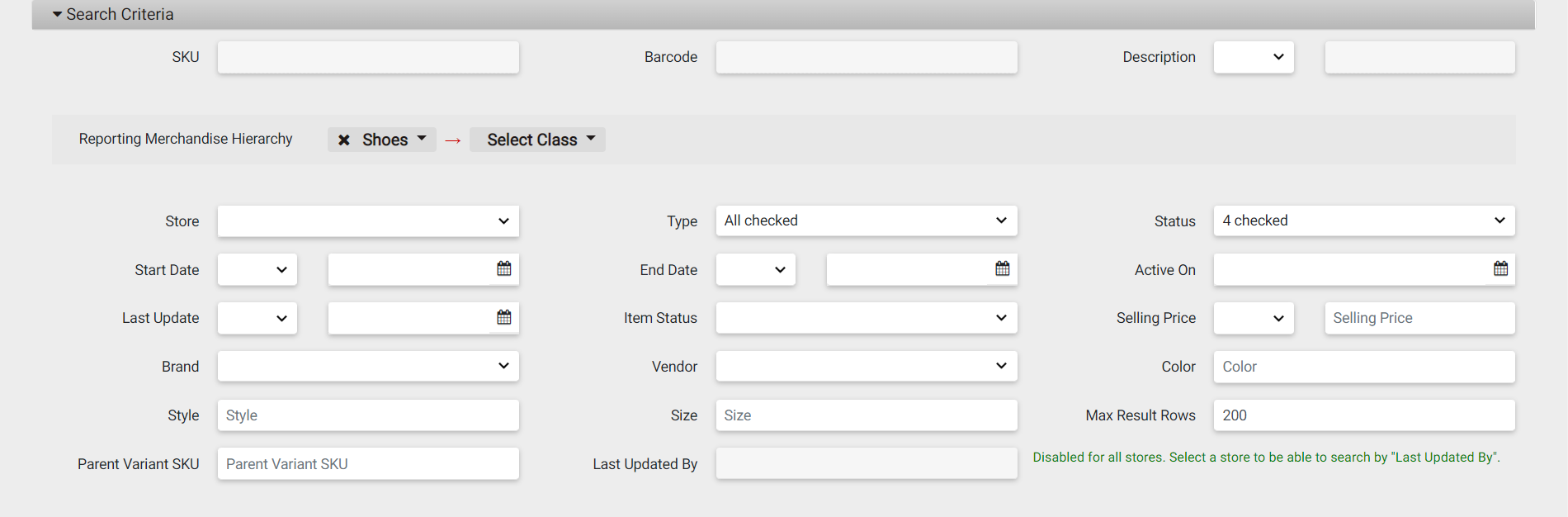
Other Search Criteria
Screenshot of the Item Maintenance application.
-
SKU (the unique retailer assigned item number)
-
Barcode (UPC, EAN, etc)
-
Description (Starts With, Contains, Ends With)
-
Status (Planning, Being Modified, Approved, Expired, Archived, etc)
-
Start Date (limit to item relationships that start <=,<,=,>,>= a defined date)
-
End Date (limit to item relationships that end <=,<,=,>,>= a defined date)
-
Active On (limit to item relationships that will be active on a specific date)
-
Late Update (limit to item relationships that were last updated <=,<,=,>,>= a defined date)
-
Item Status (Do not sell or return, sell only, return only, sell or return)
-
Selling Price (limit to item relationships with prices <, =, >, >=, <= a defined price)
-
Brand (select from drop-list)
-
Vendor (select from drop-list)
-
Color (Enter in a color)
-
Style (Enter in a style)
-
Size (Enter in a size)
-
Max Result Rows (maximum number of rows to return in the search)
-
Parent Variant SKU (the unique retailer assigned item number of the Parent Variant)
-
Last Updated By (Specific User)
Search Result Set Columns
The standard result set columns to an Item Relationship Search are outlined below:
-
SKU - The Item Number
-
Description - Item Description
-
Reporting Hierarchy - The Merchandise Hierarchy this SKU is assigned to (DEPT->CLASS->etc)
-
Type - The Relationship Type (Item Core, Item Core Override, Item Price Override, etc)
-
Price - The unit sell price
-
Price Req - The price required flag (true or false)
-
Color - SKU Color
-
Size - SKU Size
-
Style - SKU Style
-
Variant - SKU
-
Version - Major.Minor version number of the Item Relationship
-
Status - The Relationship’s Status (Planning, Modified, Approved, Expired, etc)
-
Store Group - The Store Group this Item Relationship is assigned to
-
Last Update - The GMT Date / Time of the last user update
-
Last Updated By - The name of the user or system application that last updated the Item Relationship
-
Start - The Relationship’s Start Date / Time
-
End - The Relationship’s End Date / Time
-
Last Update - Location Enterprise or Store
-
Item Status - Can be sold or returned; sell only; return only, do not sell or return
-
Item Source - Corporate or Store
-
Rel ID - The unique Relationship ID
Sample Item (Relationship) Result Sets
The following are sample item (relationship) search result sets (with various observations):
Example 1
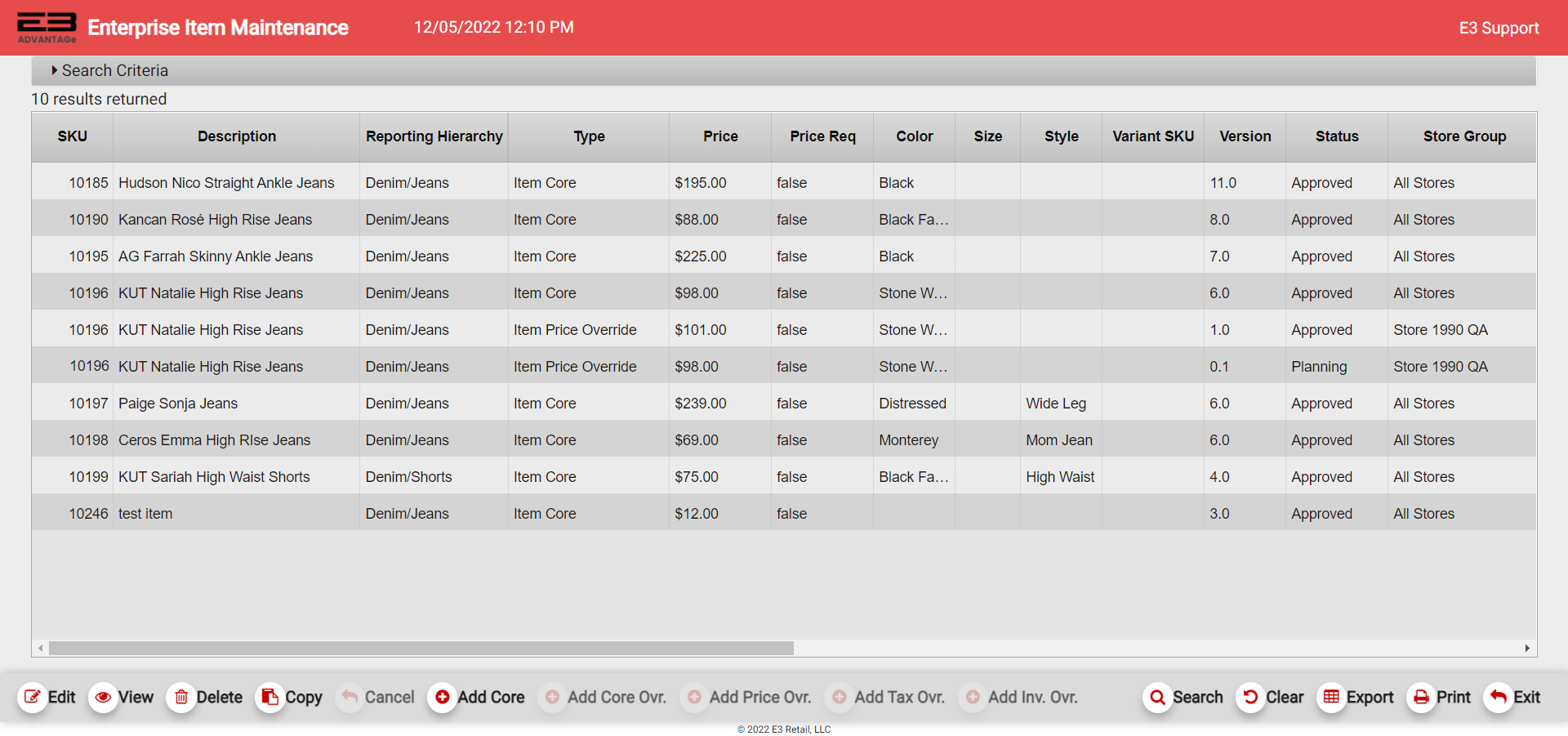
Screenshot of the Item Maintenance application.
Most users (who don’t have a large computer screen) will see a horizontal scroll bar.
In this screenshot example, please note the following observations:
-
There is a single ITEM CORE RELATIONSHIP setup for SKU 10196 (KUT Natalie High Rise Jeans). It is defined for the “All Stores” Store Group.
-
There are two ITEM PRICE OVERRIDE RELATIONSHIPS setup for SKU 1:
a. In this case, both are for Store 1990 QA (Store 1990)
b. Version 1.0 has a status of “Approved” and will be in production for Store 1990 QA after 5:00 PM
c. Version 0.1 has a status of “Planning”; i.e., an authorized user has made and “saved” changes for Store 1990 QA, but has not approved the changes yet.
Example 2

Screenshot of the Item Maintenance application.
In this screenshot example, please note the following observations:
-
There is a single ITEM CORE RELATIONSHIP setup for SKU 9 (Test Data 9). It is defined for the “All Stores” Store Group.
-
There are two ITEM PRICE OVERRIDE RELATIONSHIPS setup for SKU 9:
a. In this case, both are for Store Group (Store 1990)
b. Version 2.0 has a status of “Approved” and is currently in production for Store 1990, and has been modified (and previously approved) to END at 05:00 AM on 08/03/2018.
c. Version 1.0 is a new version (note, it is a different relationship number which is transparent to most users unless they scroll to the right) that is approved and will commence on 08/06/2018.
i. The user probably made a mistake and intended the new relationship to start on 08/04/2018, but this is technically legal. An Override (Item Core Override, Price Override, etc) does not have to always exist or be active on a given date. In this example, on 08/04/18 and 08/05/18 the base corporate record (Item Core Relationship) will soley be used.
ii. Users will occasionally create different relationships to manage scheduling future updates to the item relationship.
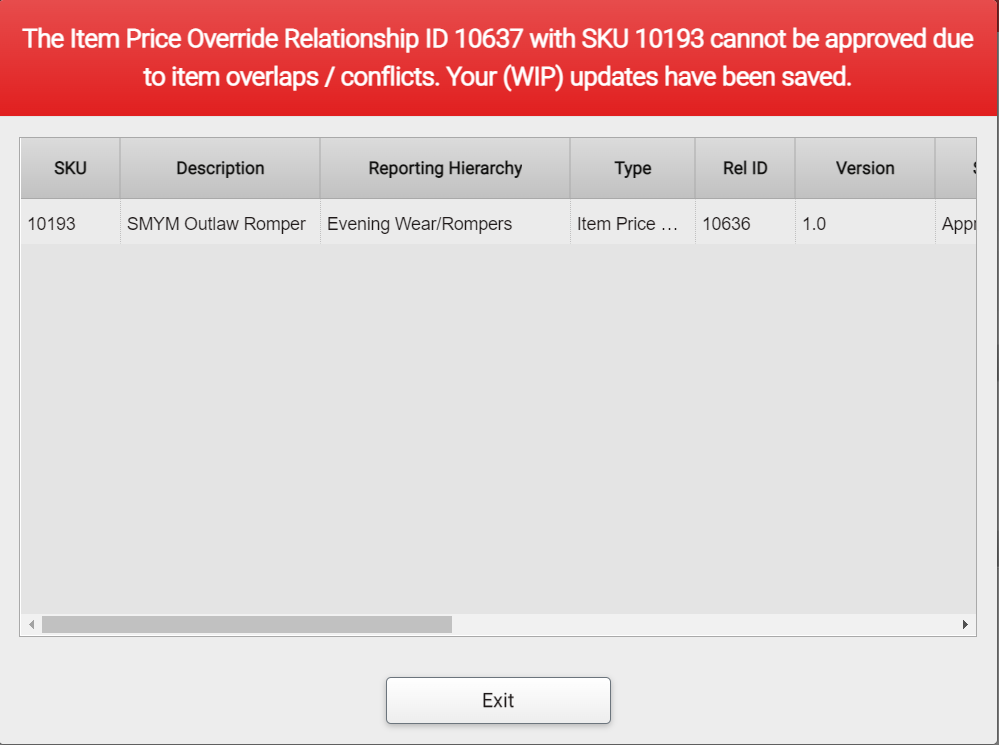
- A given Item Relationship Type (for a given SKU) may not overlap with another Item Relationship Type (for the same given SKU) if it shares a Store Number (in a store group) AND it overlaps in date/time.
a. If the user did attempt to approve an overlapping relationship, s/he would receive a warning message like the one shown below:
Example Overlap / Conflict Warning Message
A given Item Relationship Type (for a given SKU) may not overlap with another Item Relationship Type (for the same given SKU) if it shares a Store Number (in a store group) AND it overlaps in date/time. If the user did attempt to approve an overlapping relationship, s/he would receive a warning message like the one shown below:
Screenshot of the Item Maintenance application.
For example, Store 1990 cannot have an Item Price Override Relationship (for SKU 10193 defined for (12/05/2022 to 12/24/2022) and then try to approve another Item Price Override Relationship (for SKU 10193) that is defined for (12/05/2018 to 12/11/2022). There is an overlap condition between the two relationships between 12/05/2022 and 12/24/2022.
Item Relationship Versioning Overview
When a given Item Relationship Type (Core, Price Override, etc) is created, it’s initial version number is 0.0. Everytime the given relationship type is saved, it’s minor version number is incremented by 1.

Screenshot of the Item Maintenance application.
For example, in the above screenshot, an Item Price Override has been created for Store 1992 and has never been approved (hence its status of Planning).
If an authorized user were to Edit and Save an update, the version would be 0.2, which is illustrated below:

Screenshot of the Item Maintenance application.
If an authorized user were to Edit and Approve the relationship, it’s version would be 1.0 with a status of Approved:

Screenshot of the Item Maintenance application.
If the user were to now Edit and Save the relationship, it’s version would be 1.1 with a status of Being Modified.

Screenshot of the Item Maintenance application.
If the user were to now Edit and Approve the relationship, it’s version would be 2.0 with a status of Approved; i.e, every time a relationship is approved it’s major version number is incremented by one and the minor version number is reset to 0.
User can only edit the latest version
The user can only edit the latest version of a specific relationship number.
Assume the following Item Price Override relationships exist:

Screenshot of the Item Maintenance application.
The user can VIEW either version, but the user can only Edit the latest version (version 2.1, with a status of Modified). If the user attempts to Edit an “early” version, s/he will see a warning message like the one below:
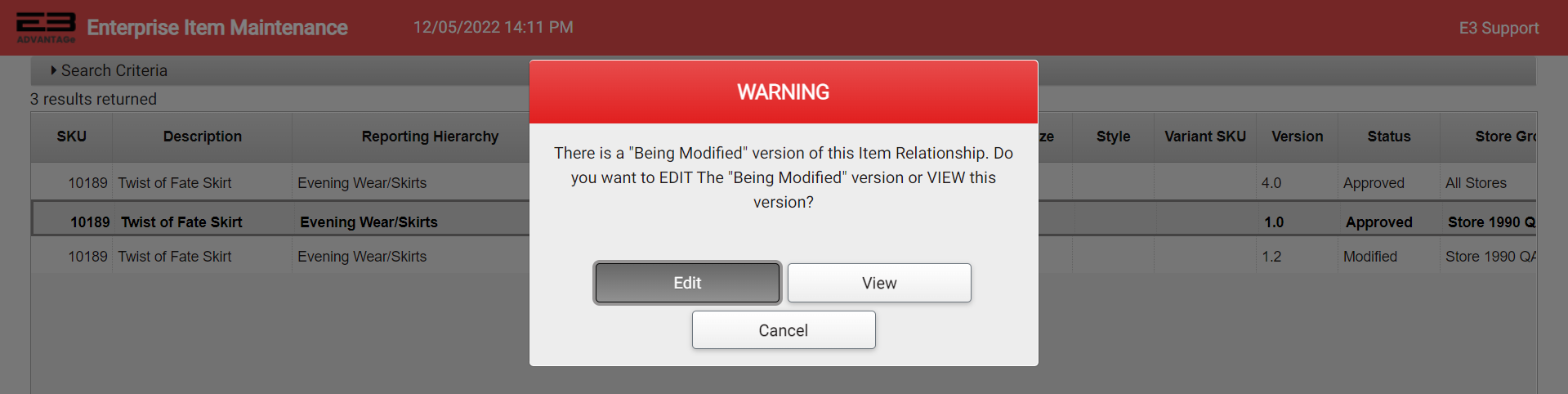
Screenshot of the Item Maintenance application.
The user can:
-
Edit the “Modified” version
-
View the “Approved” version that the user attempted to Edit
-
Cancel the Edit action
Main Command Buttons
This section documents the “super set” of Command Buttons typically available from the Main Search screen. Different deployments will have varying options (command buttons) disabled. Likewise, individual users may be defined with various security resource permissions.

Screenshot of the Item Maintenance application.
Edit
-
A single item relationship must be selected
-
The relationship cannot have a status of archived or expired
-
This action causes the relationship to be locked to prevent simultaneous edits from multiple users
View
-
A single item relationship must be selected
-
The relationship is opened in view (read only) mode
Delete
-
A single item relationship must be selected
-
The relationship must have a status of (Planning or Modified)
-
The relationship can have a status of Approved and be deleted if the start date / time is X hours in the future.
Copy
-
A single item relationship must be selected
-
This causes a new relationship (and relationship ID) to be created
Cancel
-
A single item relationship must be selected
-
The relationship status must be “Approved” and the state date / time must be X hours in the future.
Add Core
-
This is used to create a new Item Core base record.
-
This is typically reserved for Corporate Users to create the default SKU record for “ALL STORES”.
Add Core Ovr
-
An Item Core Relationship with a status of “Approved” must be selected
-
This is used to create a new Item Core Override for the Item (Item Core) for a TBD store group or store.
-
This is typically used when a store or group of stores needs overrides to the default corporate base record for the given SKU.
Add Price Ovr
-
An Item Core Relationship with a status of “Approved” must be selected
-
This is used to create a new Item Price Override for the Item (Item Core) for a TBD store group or store.
-
This is typically used when a store or group of stores needs overrides to the default pricing defined in the corporate base record for the given SKU.
Add Tax Ovr
-
An Item Core Relationship with a status of “Approved” must be selected
-
This is used to create a new Item Tax Override for the Item (Item Core) for a TBD store group or store.
-
This is typically used when a store or group of stores needs overrides to the default tax settings defined in the corporate base record for the given SKU.
Add Inventory Ovr
-
An Item Core Relationship with a status of “Approved” must be selected
-
This is used to create a new Item Inventory Override for the Item (Item Core) for a TBD store group or store.
-
This is typically used when a store or group of stores needs overrides to the default inventory attributes settings defined in the corporate base record for the given SKU.
Search
- Execute or re-execute the search with the current (or default) search criteria
Clear
- Re-set the current search criteria to their default values
Export
- Export the search result set to a CSV file
Exit
- Exit the application
Add (Edit) Item Core
When the user selects the Add Core icon, a screen like the one shown below will appear:
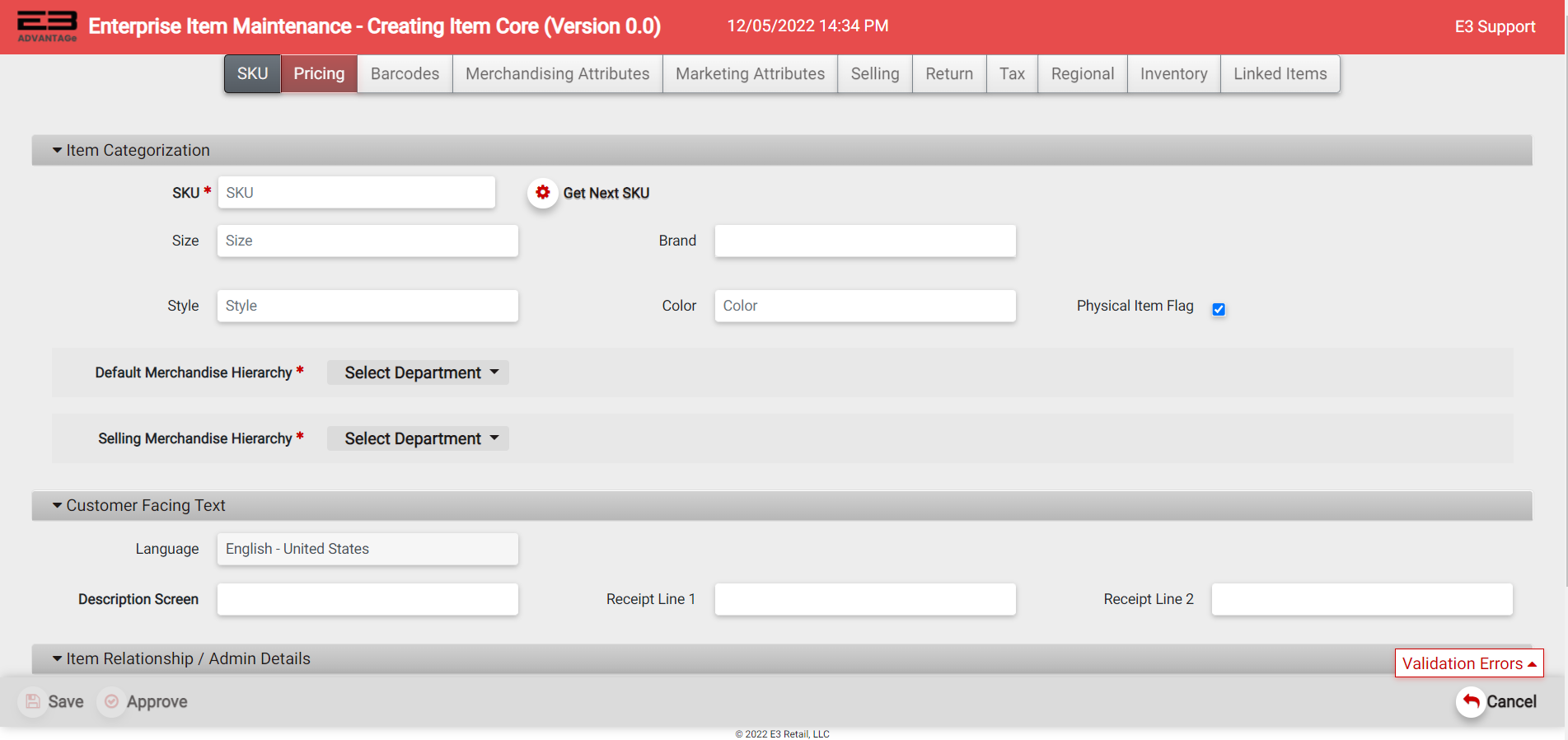
Screenshot of the Item Maintenance application.
Your deployment / configuration may have different TABS across the top depending on the actual Item Dictionary Fields defined for your environment. Likewise, your deployment may have various fields disabled or hidden on a given TAB.
The main SKU (main header) TAB will always have required fields that must be entered or verified. The other tabs highlighted indicate where data entry is required. All other tabs (not highlighted) do not require data entry, but probably should be reviewed for optional settings and/or the override of default create value settings.
A minimal subset of required data on this SKU TAB is required before the SAVE button is enabled.
SKU (Main Header) TAB
Define / Assign a SKU (Item Number)
When adding a new Item Core Relationship, the user can enter a SKU (aka Item Number) or select the icon “Get Next SKU”. If manually specifying a SKU, the user should verify that s/he is not duplicating a SKU already used to minimize errors being reported upon SAVE or APPROVE. In most cases, the user should utilize the “Get Next SKU” feature and allow the system to auto generate the next Sequential available SKU (Item Number).
The SKU is always a required field.

Screenshot of the Item Maintenance application.
Size
Size is typically an optional field.
Brand
Brand is typically an optional field. It is sometimes used to classify items (especially physical products) to a specific Brand.
Style
Style is typically an optional field.
Color
Color is typically an optional field.
Physical Item Flag
Set to TRUE if the item is a physical item or product. Set to FALSE if the item is a service or fee.
Default (Primary) Merchandise Hierarchy
The user is required to assign the item to the lowest level (DEPT->CLASS->?) of the Merchandise Hierarchy. The default Merchandise Hierarchy is the one used for Data Maintenance Item Searching and Reporting Analytics.

Screenshot of the Item Maintenance application.
Selling Merchandise Hierarchy
The Selling Merchandise Hierarchy is often defaulted to the Default Merchandise Hierarchy. Occassionally, retailers will sell or group items differently when presenting to the user on a web site or the base Item Drill Down selection menu.
Item Description Data (Customer Facing Text)
When adding a new SKU (Item Core), the user must also enter Item Description data.
The Description Screen field typically allows a longer description or more text. The Receipt Lines are typically limited to less characters for proper formatting on a POS Receipt Printer. Receipt Line 2 typically defaults to Color,Size,Style.
-
These Max Length values are controlled by the Account Team in Data Constraints. The default MaxLen values are outlined below:
-
Description Screen = 32 characters (Required Field)
-
Receipt Line 1 = 20 characters (Required Field)
-
Receipt Line 2 = 32 characters
-
Effective Dates
Every Item Relationship (Core, Overrides, etc.) requires a Start Date/Time and an End Date/Time. In most configurations, the End Date/Time is typically defaulted to a date way in the future. The user is always required to enter the Start Date/Time which must be at least X minutes in the future.
Store Group
The user is required to assign the Item Relationship to a STORE GROUP. Typically, an Item Core Relationship is the corporate base record and is often assigned to the “All Stores” store group.
Business Group
This is typically an optional or hidden field. Some retailers like to track Items (SKUs) to functional business or product groups in the organization.
Confidential
Authorized users with special resource permissions can lock or mark an item Confidential, which means only a select group of users in an organization can Edit or View the item details. This is often used to keep details of a new product or service confidential until a release date or street date.
PRICING TAB
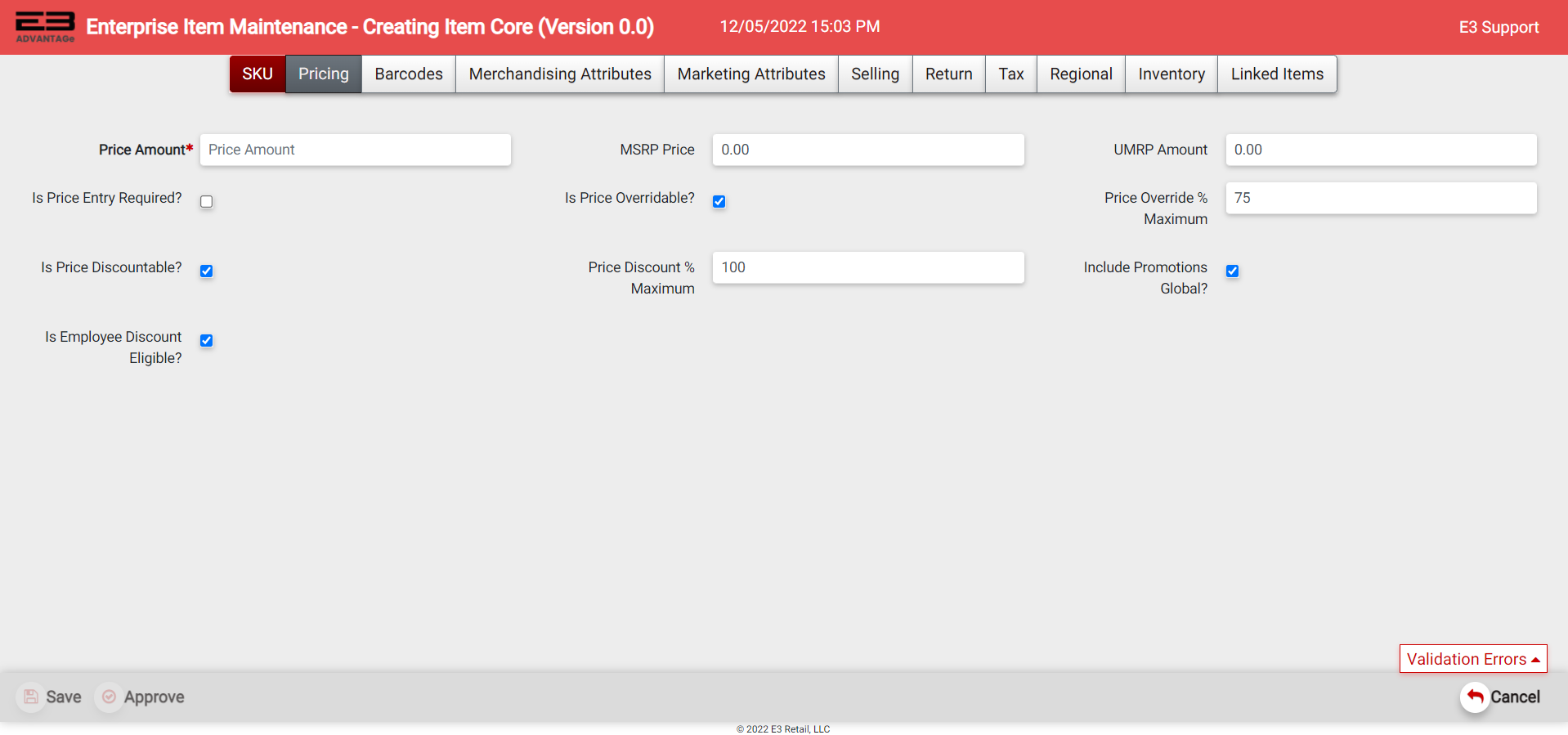
A sample screen for the Pricing Tab is shown below:
Screenshot of the Item Maintenance application.
Price Amount
The regular unit selling price.
MSRP Price
The Manufacturer’s Suggested Retail Price. This is only used for reference.
UMRP Price
The Unilateral Minimum Retail Price. This is only used for reference.
Is Price Entry Required?
When set to TRUE, the POS Application will automatically prompt the sales associate to enter the (sell or return) Price.
Is Price Overridable?
When set to FALSE, the POS Application will NOT allow the sales associate to perform a Price Override.
Price Overide % Maximum
This % value controls (when allowed) the maximum change in price the sales associate can make when performing a price override.
Is Price Discountable
When set to FALSE, the POS Application will NOT allow a manual or promotional discount to be applied against the item.
Price Discount % Maximum
This % value controls (when allowed) the maximum “net” discount percentage that can be applied against the item.
Include Promotions Global
When set to TRUE, the Global Promotions (defined in Enterprise Promotions Manager) will forcibily apply to this item.
Is Employee Discount Eligible
Set to TRUE if this item is eligible for employee discounts.
BARCODES TAB
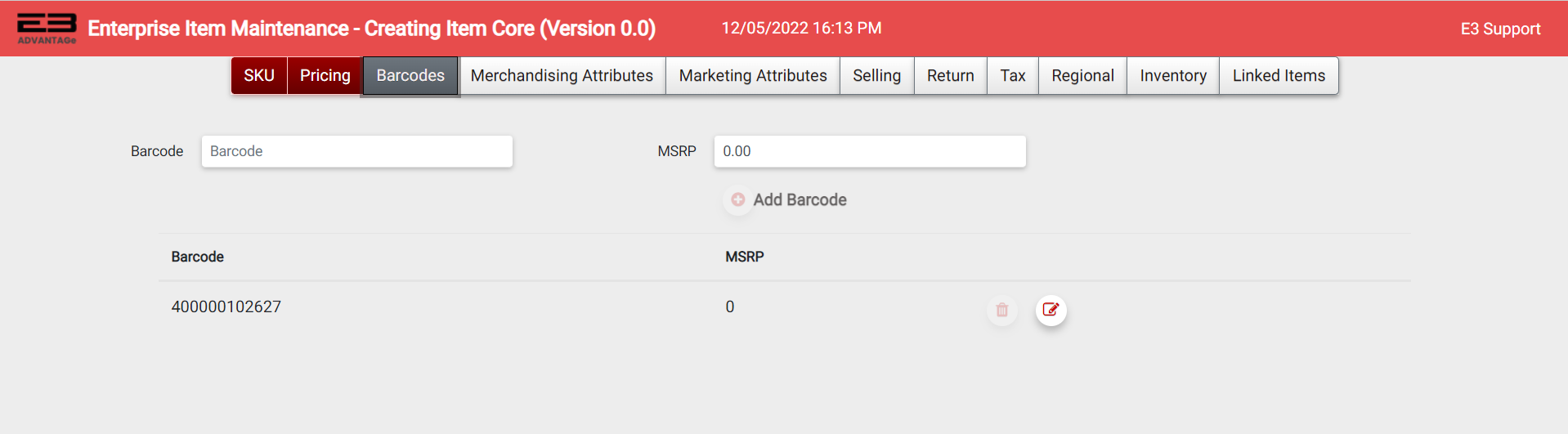
A sample screen is shown below:
Screenshot of the Item Maintenance application.
By default, an ‘in-house" UPC Barcode is created for the SKU. An authorized user can add or assign additional manufacturer’s barcodes (UPC, EAN, etc) to the SKU.
Typically, only authorized corporate users can manage (add, remove) Barcodes.
Standard Retail Validation Rule: Many barcodes can be assigned to a given SKU; however, a given barcode can only point to a single SKU.
CATEGORIZATION TAB
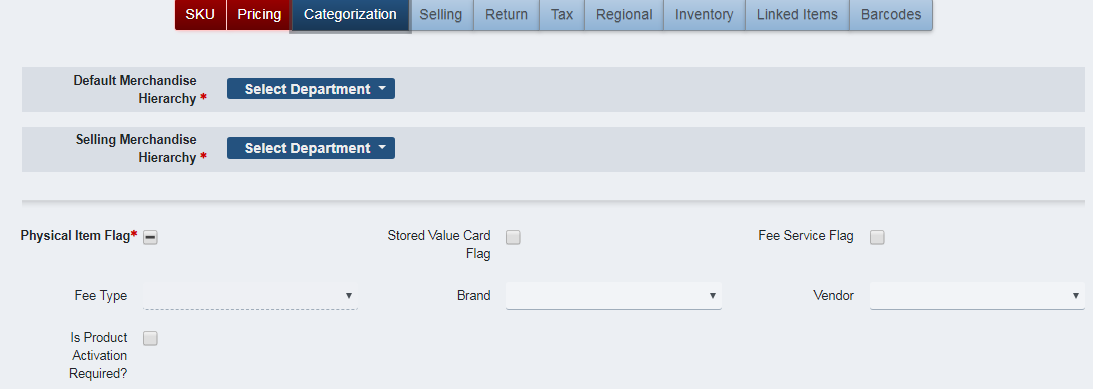
A sample screen for the Categorization Tab is shown below:
Screenshot of the Item Maintenance application.
Stored Value Card Flag
Set to TRUE if the item is a Store Value Card, or a Gift Card.
Fee Service Flag
Set to TRUE if the item SKU is a service FEE.
Fee Type
Fee Type Code. Rarely used.
Is Product Activation Required
Set to TRUE if the item (product) requires special processing such as real-time or near real-time activations (ie, processing by a 3^rd^ party external system).
SELLING TAB
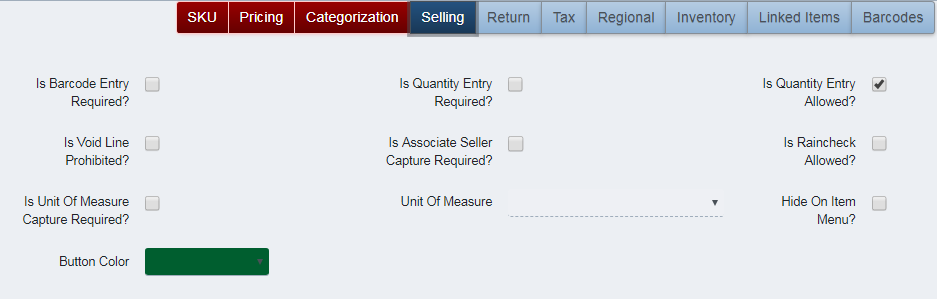
A sample screen for the Selling (attributes) Tab is shown below:
Screenshot of the Item Maintenance application.
Is Barcode Entry Required
Set to TRUE if barcode entry is required; i.e., the sales associate is not permitted to sell the item by manually entering the SKU.
Is Quanitity Entry Required
Set to TRUE if the POS Application should automatically prompt for QTY when the item is sold.
Is Quantity Entry Allowed
Set to FALSE if the sales associate is not permitted to change the QTY from 1; i.e. the sales associate is required to enter or scan the item one at a time. This is often used when special processing (serial number prompt for example) is required on each individual item.
Is Void Line Prohibited
Set to TRUE if the sales associate is not permitted to perform a line item void.
Is Associate Seller Capture Required?
Set to TRUE if the POS Application should prompt for the ID of the sales associate who assisted the customer with the purchase of a given item.
Is Raincheck Allowed?
Set to TRUE if Raincheck processing is permitted on this item.
Is Unit Of Measure Capture Required?
Set to TRUE if the POS Application needs to prompt for UOM. For example, the item is sold by weight and the POS is prompting for the weight (in pounds).
Unit of Measure
The UOM (weight, length, etc) that is being used.
Hide On Item Menu
Set to TRUE if the item should be defined, but not displayed on the base Item Drill Down Menu.
Button Color
A choice of Button Color to be used if the base Item Drill Down Menu is used.
RETURN TAB
A sample screen for the Return (attributes) Tab is shown below:

Screenshot of the Item Maintenance application.
Return Policy Days
This is only relevant when the optional subsystem for Integrated Returns is used.
Return Restock Fee Type
This is only relevant when the optional subsystem for Integrated Returns is used and the retailer is charging the customer a return restocking fee for the merchandise. The Fee Type can be a flat dollar or % of price.
Return Restock Fee Value
The restocking fee % (percentage) or $ (dollar) value.
Is Open Box Return Allowed?
This is only relevant when the optional subsystem for Integrated Returns is used and the retailer is allowing an opened or used product to be returned.
Return Resell Allowed?
This is only relevant when the optional subsystem for Integrated Returns is used and an item may not be eligible for resell.
TAX TAB
A sample screen for the TAX (attributes) Tab is shown below:

Screenshot of the Item Maintenance application.
Tax Classification ID
The Tax Classification ID is a required field. Typically, a given retailer will have 1 – 3 Tax Classifications:
-
No Tax (The item is non-taxable)
-
Default Tax (The primary or default Tax Classifcation)
-
Secondary Tax (The alternative or secondary Tax Classification)
Note: In Tax Maintenance, each store location should have a Tax Group (specific to the retail store number) mapped to each Tax Classification defined in Item Maintenance.
Tax Exempt Code
The item is eligible, not eligible, or eligible for resale only for Tax Exempt processing.
REGIONAL TAB
A sample screen for the Regional (attributes) Tab is shown below:

Screenshot of the Item Maintenance application.
Status
This is a required field. It represents the selling and return status of a given item.
-
Do not sell or return (Typically used for recalled items or services no longer available).
-
Can be sold only; no return (The item can be sold, but returns are not accepted).
-
Can be returned; no sale (The item can be returned, but it should not be sold anymore).
-
Can be sold or returned (Item can be sold or returned, ).
Contening Rating Code
This field is only used by a subset of retailers who sell merchandise content with “Content Rating Codes” and require disclaimers and potential age verification.
Is Content Rating Mature?
This field is only used for products that require age verification due to mature content rating.
Is Content Rating Inhalant?
This field is only used by a subset of retailers who sell merchandise that require “Inhalant” restrictions and potential age verification.
Is E911 Services Item?
Set to TRUE if the item is an Emergency 911 Service Item.
Quantity Max Allowed
The maximum quantity allowed to be sold for a given item. This is only used for very controlled substances and products.
Sales Resctriction ID
This item has a specified sales restriction:
-
Day of Week
-
Time of Day
-
Age Verification
Street Date
The item cannot be sold unless today’s date is >= to the defined street date (ie, the publically announced product availability date).
INVENTORY TAB
A sample screen for the INVENTORY (attributes) Tab is shown below:

Screenshot of the Item Maintenance application.
Is Update Stock On Hand Required
Set to TRUE if this item’s SOH (Stock On Hand) count should be maintained in the backoffice inventory subsystem.
Cost Average Amount
The average cost of the item.
LOYALTY TAB
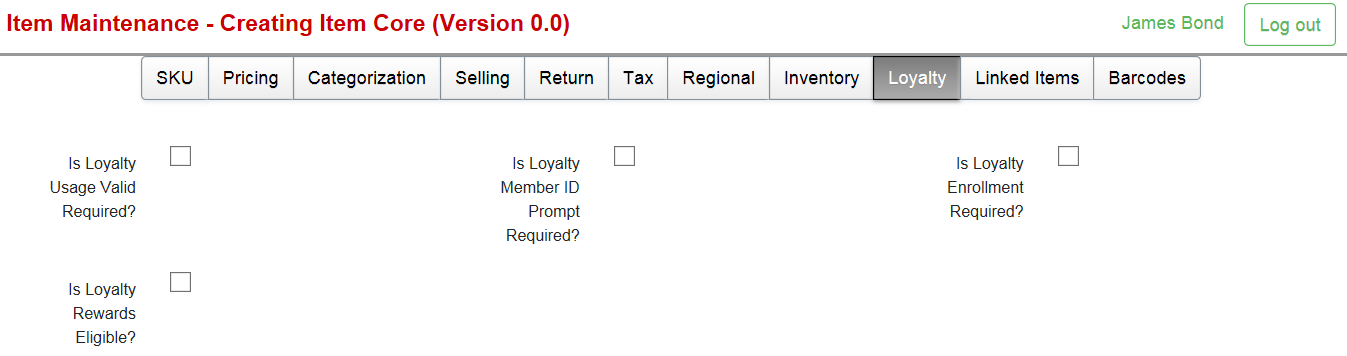
A sample screen for the Loyalty (attributes) Tab is shown below:
Screenshot of the Item Maintenance application.
Is Loyalty Member ID Prompt Required?
Automatically prompt for Loyalty Member ID or Customer Loyalty Number when this item is sold.
Is Loyalty Enrollement Required?
To sell this item or service, the customer must be enrolled (or enroll) in the loyalty system.
Is Loyalty Rewards Eligible?
Set to TRUE if this item is eligible for Loyalty Rewards.
LINKED ITEMS TAB
This tab does not display if the retailer’s system is leveraging E3 Retail’s Solution Master / Taxonomy Product Suite.
This tab is optionally available with Item Mainteance for simple linking of items, including usage for suggested sell. The user can define optional or required child / related product item(s) to associate with the Driving Product Item.
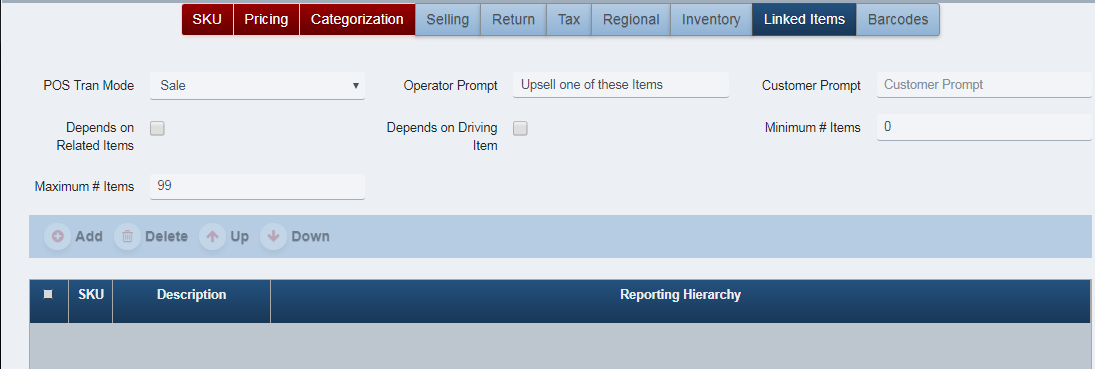
A sample screen for the Linked Items Tab is shown below:
Screenshot of the Item Maintenance application.
POS Tran Mode
The linked items XAPP should execute when the Driving Product SKU (Item) is SOLD, RETURNED, or both.
Operator Prompt
The prompt to be displayed to the cashier (sales associate).
Customer Prompt
An optional prompt to be displayed to the customer is a customer display device is configured for linked items processing.
Depends on Related Items
The driving product item depends on the related product item. For example, if the sales associate line voids the related product item, the driving product item is automatically voided.
Depends on Driving Item
The related product item(s) depend(s) on the Driving Product Item. For example, if the sales associate line voids the driving product item, all related product items are automatically voided.
Minimum # Items
The minimum number of related product items the sales associate is required to select. If the value is 0, then the scenario is more like suggested sell where the related product items are optional; otherwise, the sales associate must select N number of related product items.
Maximum # Items
The maximum number of related product items the sales associate can select.
The defined list of related product items
A grid (or list) of SKUs the user has defined. The user can add and/or remove related product items from the list.
USER NOTES TAB
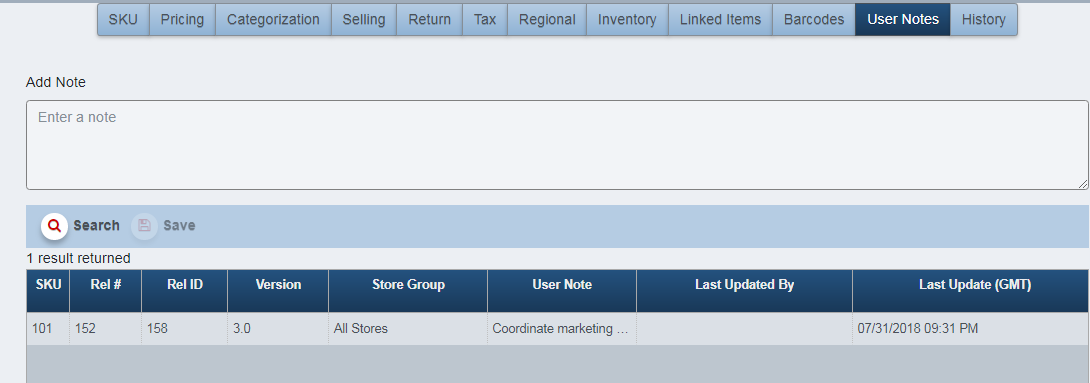
A sample screen is shown below:
Screenshot of the Item Maintenance application.
The user can add a new note, or search for previous notes entered for this item relationship.
HISTORY TAB
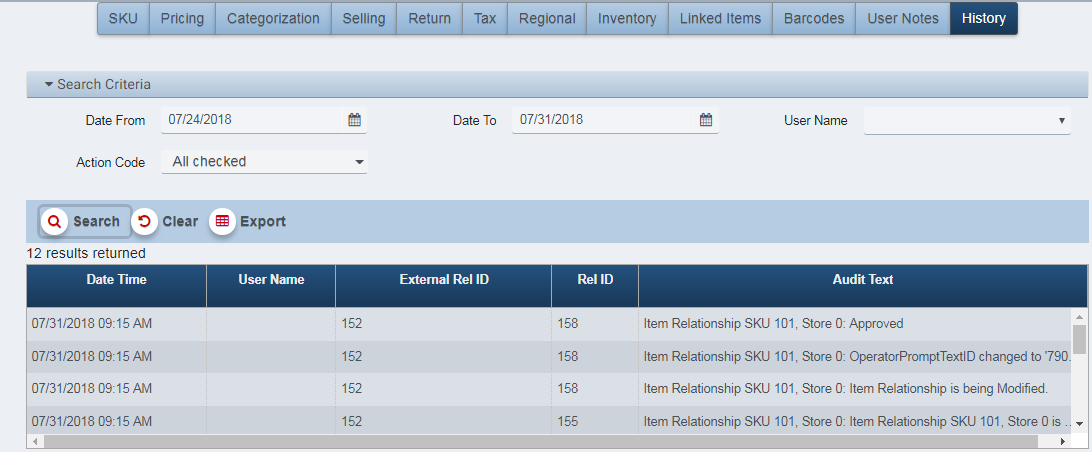
A sample screen is shown below:
Screenshot of the Item Maintenance application.
The History Tab is typically used after the item is created and saved at least once. The History Tab is a basic audit log of the major activites or changes that have occurred with respect to the Item Relationship.
Add (Edit) Item [Core, Price, Tax, etc] Override
When the user selects Add (Price,Tax) Ovr, a screen like the one shown below will appear:
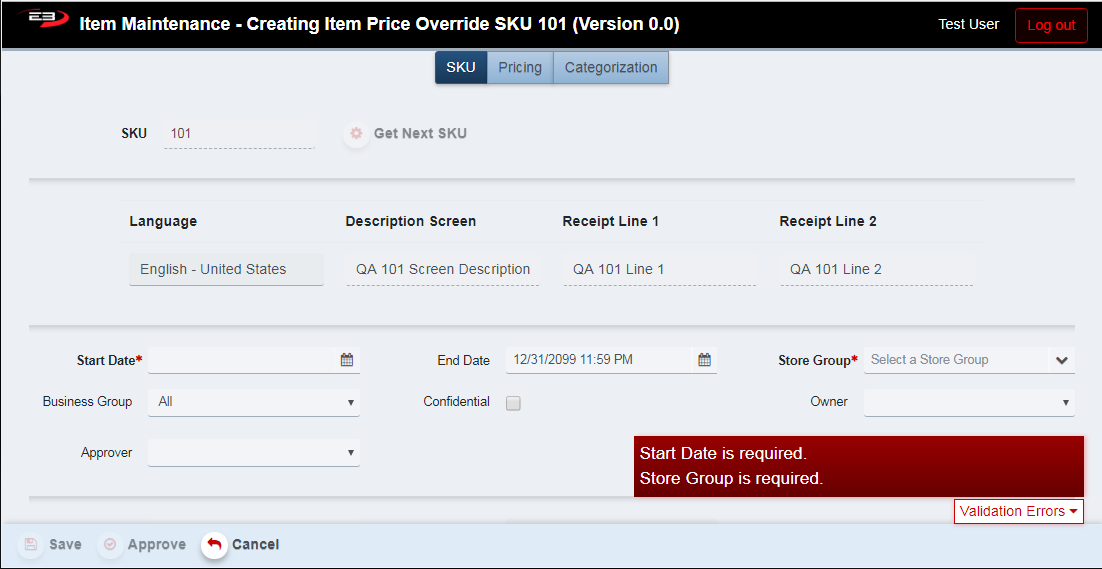
Screenshot of the Item Maintenance application.
SKU (Main Header) TAB
In an Item (Core, Price, Tax, etc.) OVERRIDE Relationship, the user is NOT permitted to change key elements defined in the base (Item Core) record:
-
SKU
-
Item Descriptions
-
Merchandise Hierarchy
-
Barcodes (Typically restricted to Corporate Item Core Users)
The user must assign a Store Group for the Override Relationship.
The user must also define the effective dates for the Override Relationship, which should not be outside the effective dates of corresponding Item Core Relationship(s) for the given SKU.
ITEM CORE OVERRIDE: OTHER TABS
In an Item Core Override relationship, the user can typically modify (or override) “most” attributes on the following tabs:
-
Pricing
-
Selling
-
Return
-
Tax
-
Regional
-
Inventory
-
Loyalty
-
Linked Items
Please note that the configurations vary by retailer and the retailer’s specific system configuration for an Item Core Override Relationship.
ITEM PRICE OVERRIDE: PRICING TAB
In an Item Price Override relationship, the user can only modifiy pricing attributes. This relationship is typically used by corporate retailers who have default pricing and then manage price adjustments by store groups in regions, zones, etc.
ITEM TAX OVERRIDE: TAX TAB
In an Item Price Override relationship, the user can only modifiy tax attributes. This relationship is typically used by corporate retailers who have default tax classifications and then manage tax adjustments by store groups in regions, zones, etc.