Operator Clock In Out
Initial (Main Search) Screen
-
SignOn to the BackOffice.
-
From the Operator Management / Reports menu, select Operator Clock In/Out.
-
An initial search screen (like the one shown below) should appear.
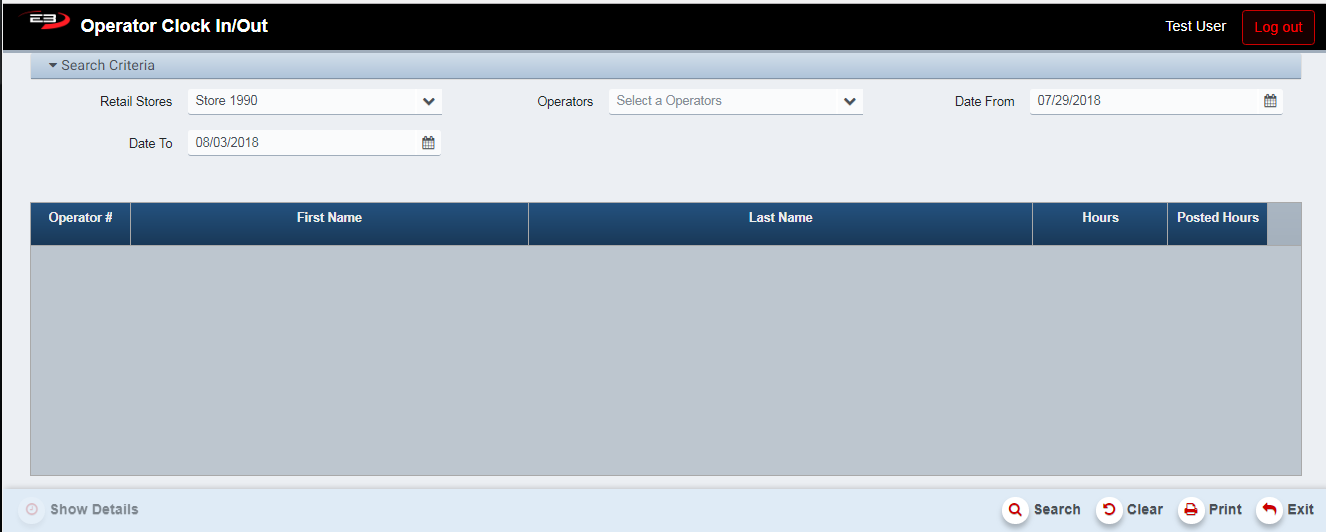
Screenshot of the Operator Clock In Out application.
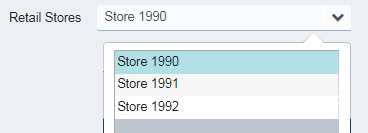
- Select a store from the list of stores visible to you, this will default to the first store in the list.
Screenshot of the Operator Clock In Out application.
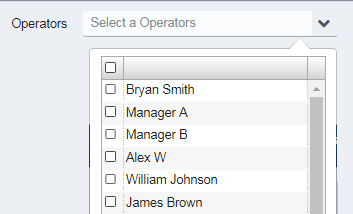
- Optionally, select one or more operators to filter the result set.
Screenshot of the Operator Clock In Out application.
-
Optionally, you can specify the Date From and Date To values to time-limit the search results.
-
The Date From defaults to the beginning of the week (Sunday).
-
The Date To defaults to today’s date.
-
Click Search to perform the search.
-
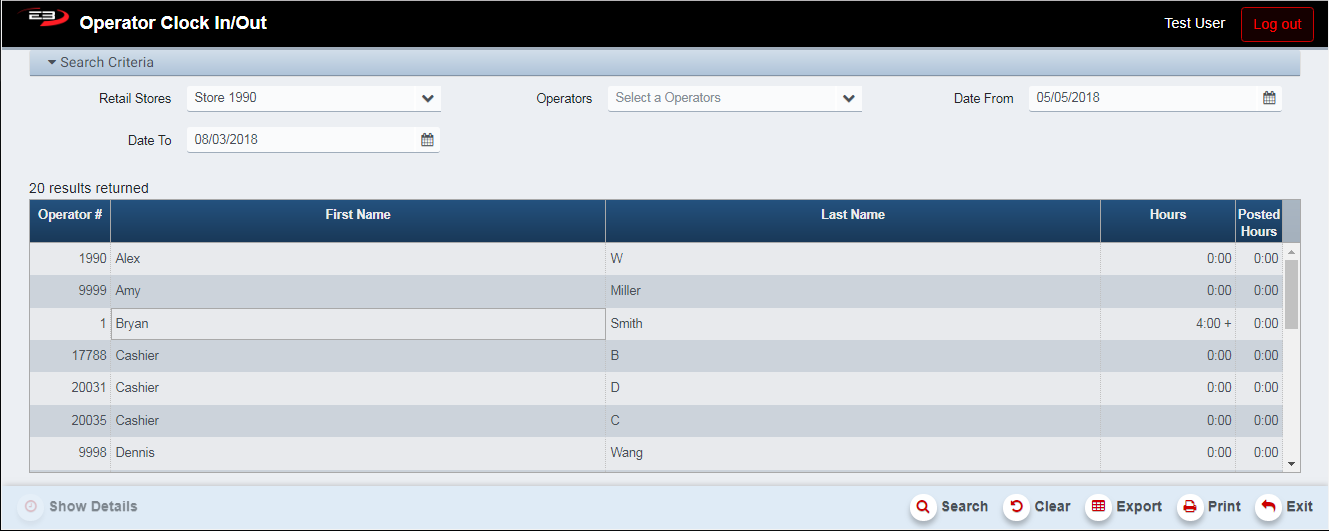
Verify the search result set, you should see the operators filtered according to the search criteria
Screenshot of the Operator Clock In Out application.
-
The non-posted and posted hours are given in their own columns in the results.
-
A plus sign ‘+’ in the Hours for a given operator indicates the operator is clocked in and has an incomplete shift.
-
Non-zero hours indicate one or more complete shifts (clock in followed by clock out).
-
See the next section for how to update and save the operator hours.
-
Click Clear to clear the results and reset the search criteria to their default values.
-
When the result grid has data, the Export and Print buttons are enabled.
-
Click Exit to leave the application when complete.
Updating Operator Hours
-
You can adjust the hours for an operator, including adding, editing, and deleting shifts
-
To modify an operator’s hours, highlight the operator in the search results and then click Show Details.
-
Details for an operator will look like the following:
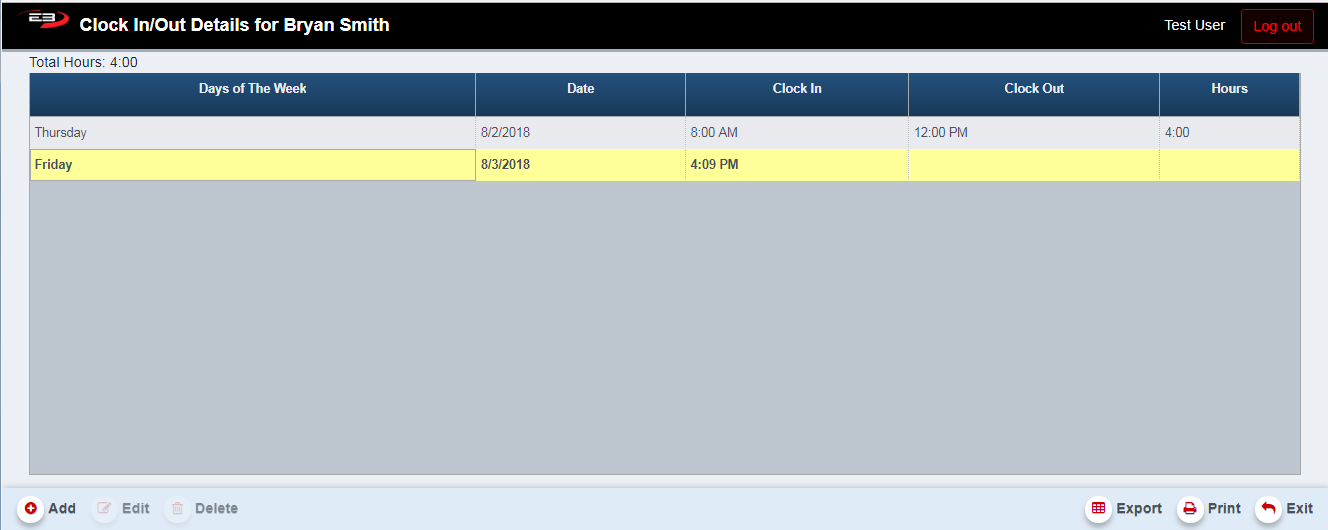
Screenshot of the Operator Clock In Out application.
-
A complete shift has both Clock In and Clock Out times, plus the number of hours in the shift.
- A complete shift can be added, edited, and deleted.
-
An incomplete shift has only the Clock In time, with neither hours nor reason values as the shift is still active.
- An incomplete shift can only be deleted.
Adding A Shift
-
Highlight the row in the search results containing the operator for the new shift.
-
Click Show Details to go to the Details screen and display the existing shifts, if any.
-
Click the Add button, the Add Shift dialog appears.
-
Date, Clock In, Clock Out, and Clock Out Reason are all required fields.
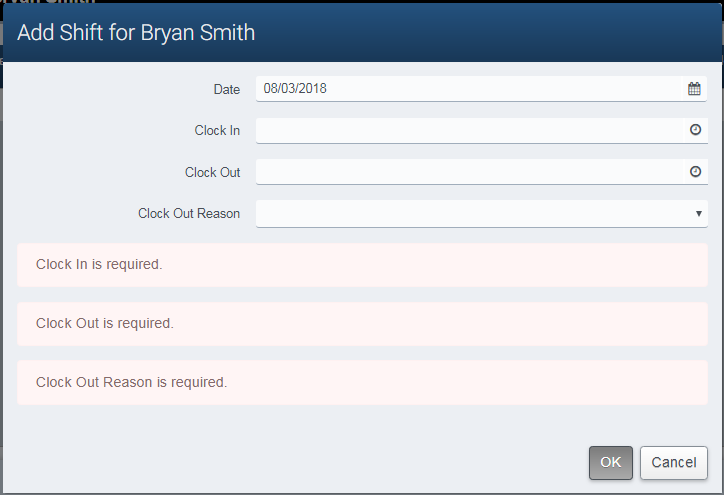
Screenshot of the Operator Clock In Out application.
Overlapping shifts are prohibited, a validation error will indicate overlap

Screenshot of the Operator Clock In Out application.
-
Change the Date if the shift is not going to be on today’s date, default date is today.
-
Enter the Clock In time.
-
Enter the Clock Out time.
-
Select a Clock Out Reason.
-
Click OK to complete the add and return to the Details screen.
-
The shift hours are displayed as hours:minutes.
-
Click Exit to return to the operator search results.
Editing A Shift
-
Highlight the row in the search results containing the operator whose shift will be modified.
-
Click Show Details to display the existing shifts.
-
Highlight the shift you wish to modify.
-
Click Edit to modify the shift, the Edit Shift dialog appears.
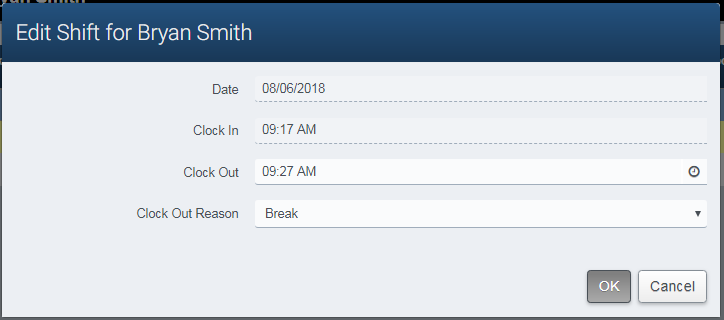
Screenshot of the Operator Clock In Out application.
- NOTE: Overlapping shifts are prohibited, a validation error will indicate overlap.
Screenshot of the Operator Clock In Out application.
-
The shift’s Date and Clock In fields are read-only and can’t be modified.
-
Modify the Clock Out time.
-
Modify the Clock Out Reason.
-
Click OK to complete the edit and return to the Details screen.
-
Click Exit to return to the operator search results.
Deleting A Shift
-
Highlight the row in the search results containing the operator whose shift will be deleted.
-
Click Show Details to go to the Details screen and display the existing shifts.
-
Highlight the shift you wish to delete.
-
Click the Delete button, a confirmation dialog appears
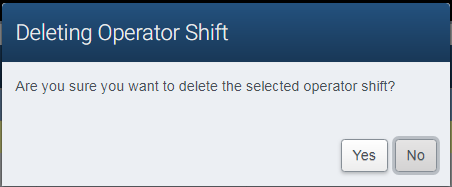
Screenshot of the Operator Clock In Out application.
-
Click No to cancel the deletion and return to the Details screen.
-
Click Yes to perform the deletion and return to the Details screen.
-
Click Exit to return to the operator search results.
Other Commands
Export Search Results
The Export function allows the user to save the operator search results as a comma-separated values (CSV) file for use in Excel. Once you have a result set that’s filtered as desired, click the Export button. The file is saved as OperatorClockInOut_Summary_yyyy-m-d.csv in the default location, typically the Downloads folder for the user.
Print Search Results
The Print function allows the user to save the operator search results as an Acrobat PDF file for viewing/printing in Adobe Acrobat Reader. Once you have a result set that’s filtered as desired, click the Print button. The file is saved as OperatorClockInOut.pdf in the default location, typically the Downloads folder for the user.
Export Operator Shifts
The Export function allows the user to save the operator shift details as a comma-separated values (CSV) file for use in Excel. Once you have the shift details as desired, click the Export button. The file is saved as OperatorClockInOut_Details_yyyy-m-d.csv in the default location, typically the Downloads folder for the user.
Print Operator Shifts
The Print function allows the user to save the operator shift details as an Acrobat PDF file for viewing/printing in Adobe Acrobat Reader. Once you have the shift details as desired, click the Print button. The file is saved as OperatorClockInOutDetailsfor.pdf in the default location, typically the Downloads folder for the user. is the name of the selected operator.