Pricing Simulator
Initial (Main Search) Screen
-
SignOn to the BackOffice.
-
From the Item Pricing / Data Management menu, select Pricing Simulator.
-
Pricing Simulator may also be launched from Enterprise Promotions Manager.
-
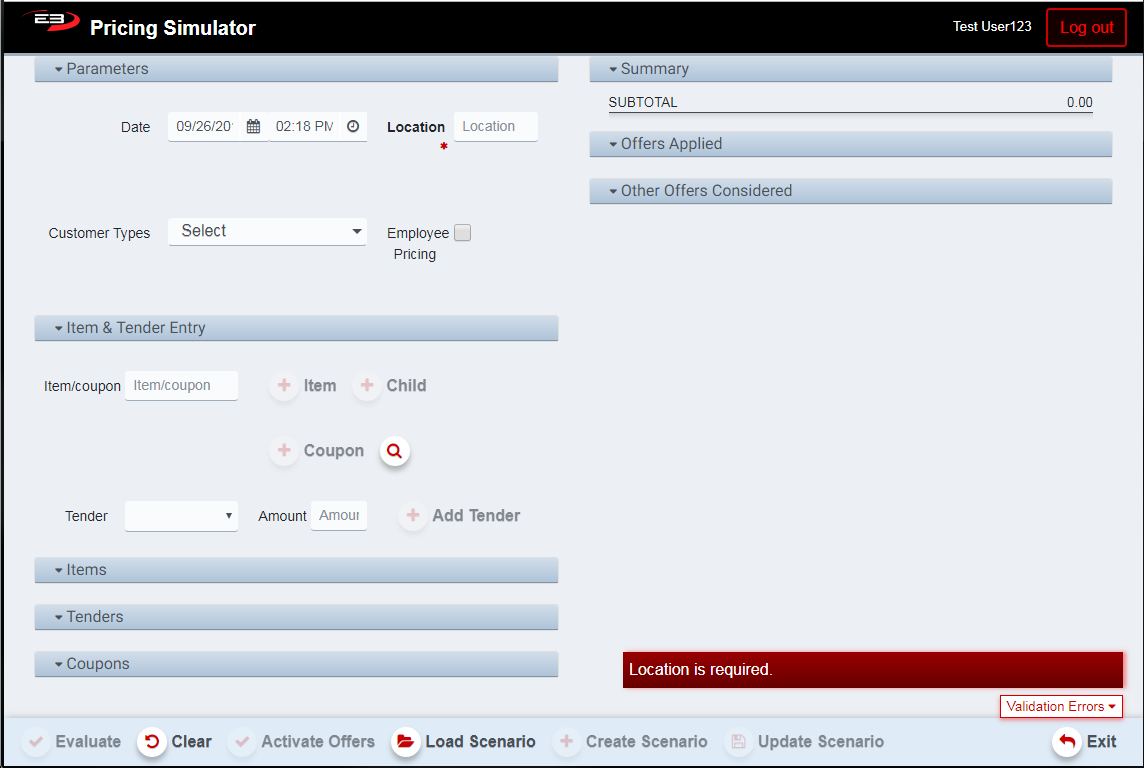
The main screen of the Pricing Simulator looks like this.
Screenshot of the Pricing Simulator application.
-
The control groups on the left side of the screen are used for configuring a promotion test:
-
Parameters - this group sets the time, store, and customer parameters for the simulation.
-
Item & Tender Entry - this group adds items, tenders, and coupons to the simulation.
-
Items - this group shows the items added for the simulation.
-
Tenders - this group shows the tenders added for the simulation.
-
Coupons - this group shows the coupons added for the simulation.
-
-
The control groups on the right side of the screen are used to display results:
-
Summary - this group gives a summary of the simulated transaction, much like a receipt.
-
Offers Applied - this group shows which promotions, if any, were applied to the transaction.
-
Other Offers Considered - this group shows which promotions, if any, were considered and rejected.
-
Simulating Promotions
Simulating a promotion requires two sets of values: the promotion parameters and the item/tender/coupon entries.
Parameters
The values in the Parameters section define when (date/time) and where (which store) the simulation takes place along with whether the customer has any optional customer loyalty level(s) and employee status or not.
-
Date - Set the Date and Time to be used for the simulation, this can be inside or outside of the active window.
-
Location - Set the store number where the simulation takes place (required, no default).
-
Customer Types - Pick one or more customer loyalty levels from the drop-list to check loyalty-based promotions.
-
Employee Pricing - Check this option to simulate an employee purchase..
Item & Tender Entry
The Item & Tender Entry section defines the items to be priced, any related tender types and amounts, and coupons.
-
Item/coupon - Enter an Item’s SKU or Coupon’s number in the field then click the appropriate plus sign to add.
-
Item - this adds the SKU as an item.
-
Child - this adds the SKU as a child of the parent item, used in conditional promotions.
-
Coupon - this adds the number as a discount coupon.
-
The magnifying glass is used to search for coupons.
-
Tender - select an optional tender type from the drop-list for tender-based pricing.
-
Amount - enter the amount of the selected tender.
-
Add Tender - click the plus sign to add both tender and amount to the simulation.
Items, Tenders, and Coupons
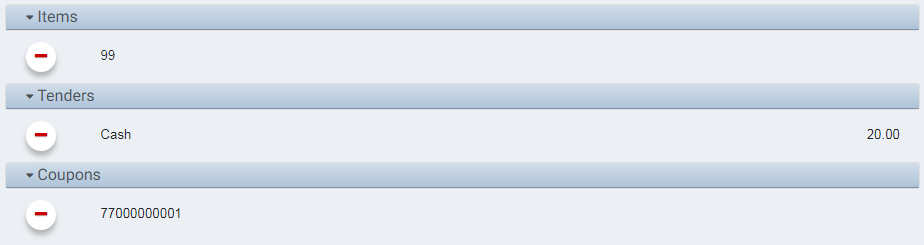
The Items, Tenders, and Coupons sections show which items, tenders, and coupons have been added to the simulation. The minus signs next to each entry can be used to remove that entry from the simulation.
Screenshot of the Pricing Simulator application.
Running The Simulation
When all the desired parameters have been configured for the simulation, click the Evaluate button to run the pricing simulation. The Items, Summary, Promotions Applied, and Other Promotions Considered sections display the results.
Items
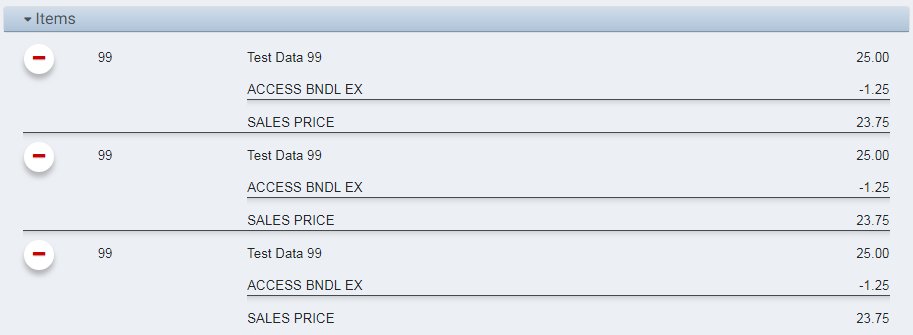
The Items section displays how the evaluated promotion modified the price of each item in the transaction. If any of the items in the transaction did not receive a price modification due to the promotion(s) being evaluated, only the SKU and the full price are displayed.
Screenshot of the Pricing Simulator application.
Summary
The Summary section displays the results of the simulation including the subtotal of all items, the amount saved from the promotion, and the total amount for all items involved in the promotion minus any savings.

Screenshot of the Pricing Simulator application.
If there were no savings (i.e. no applicable promotions), then only the subtotal value appears.

Screenshot of the Pricing Simulator application.
Promotions Applied
The Promotions Applied section shows all promotions associated with this pricing. If there were no promotions applied to this sale then the Promotions Applied section is empty. In the following example, information about the applied promotion is displayed including the Start/End date range and the Description (from the Enterprise Promotions Manager).

Screenshot of the Pricing Simulator application.
Other Promotions Considered
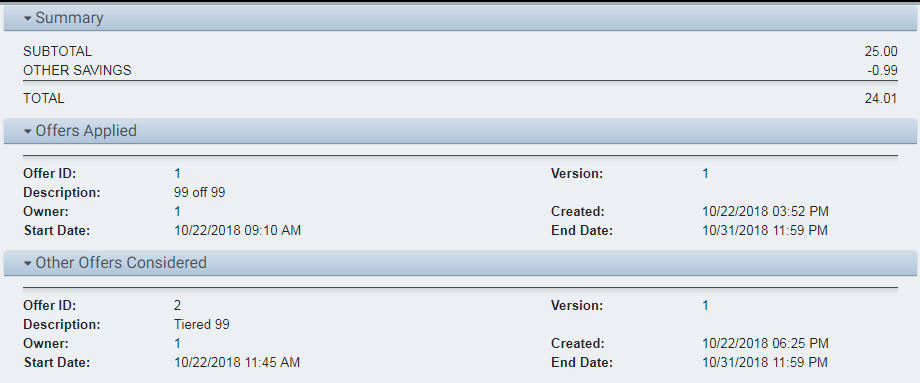
One of the main features of the pricing logic is finding the best deal possible for the customer (i.e. the largest discount) out of all applicable promotions. Any promotions that were considered and then rejected appear in the Other Promotions Considered section as seen here.

Screenshot of the Pricing Simulator application.
If there were no alternative promotions available (or no applicable promotions whatsoever) then this section is empty.
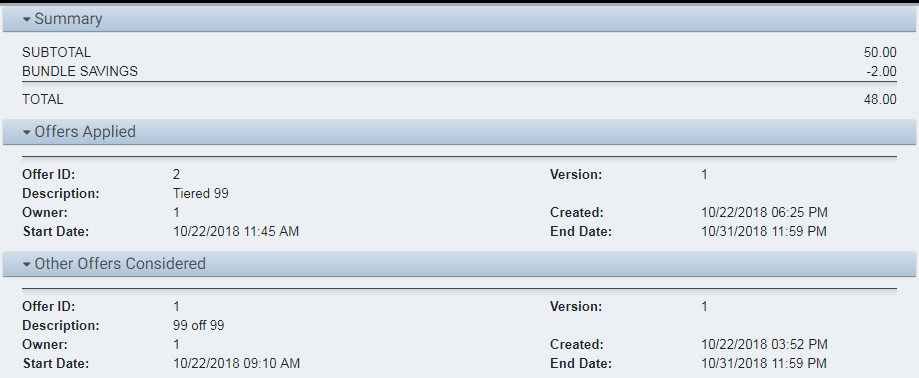
Which promotion is “best” may change depending on different factors. In the following examples, the best promotion (#1) outranks the considered promotion (#2) for a single item, but adding a second item reverses the order.
Screenshot of the Pricing Simulator application.
Here are the results from adding items that triggered a different promotion. In this case, the discount went from $0.99 per item to $1.00 per item, an increase in the discount of only $0.01 or %0.04. Notice that promotion #2 now produces better results than promotion #1.
Screenshot of the Pricing Simulator application.
Promotion Scenarios
A promotion scenario is basically a file that loads all the values needed for evaluating a promotion without additional input from the operator. Once created, running a promotion scenario is simply a matter of loading the scenario and then clicking Evaluate.
Create Scenario
-
Enter all parameters and values needed for evaluating a promotion.
-
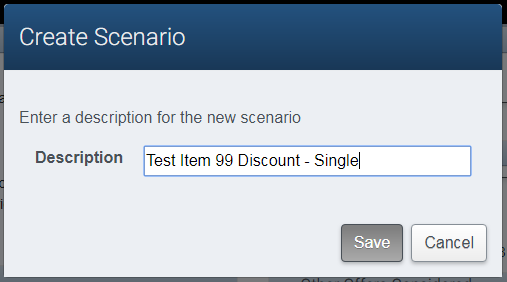
Click the Create Scenario button, the following dialog appears.
Screenshot of the Pricing Simulator application.
-
Enter a description for the scenario in the Description field.
-
Click Cancel to abort the creation or click Save to keep the scenario.
Load Scenario
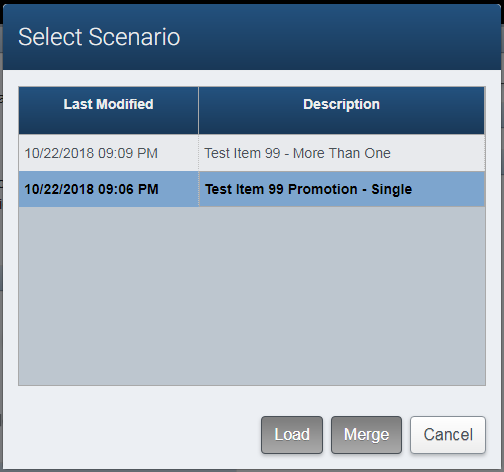
- Click the Load Scenario button to load an existing scenario, the following dialog appears.
Screenshot of the Pricing Simulator application.
-
Click Cancel to abort the load.
-
Click on a scenario in the list to select it and then click Load to load the selected scenario.
-
If you click on a scenario in the list and then click Merge; the scenario is loaded and all of the items, tenders, and coupons from the remaining scenarios will be merged into the selected scenario.
Update Scenario
If you have changed any of the Parameters and/or Item & Tender Entry settings, you can update an existing scenario.
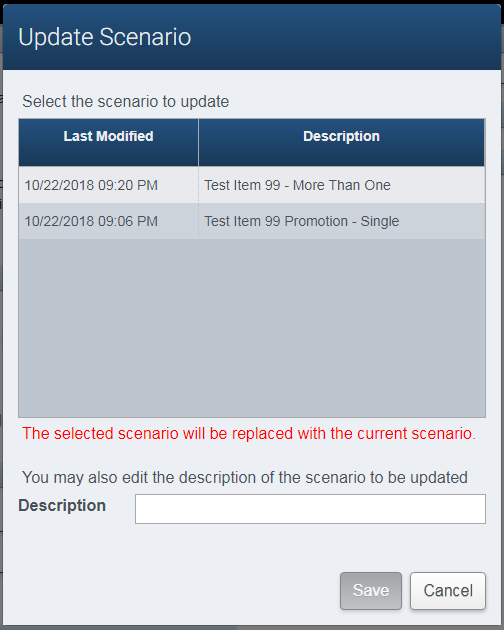
- Click the Update Scenario button to load an existing scenario to be updated, the following dialog appears.
Screenshot of the Pricing Simulator application.
-
Click the scenario you wish to update in the list to select that scenario.
-
NOTE: There is no “Save As”, the update will overwrite the selected scenario !!!
-
You may modify the description by entering a new value in the Description field.
-
Click Cancel to abort the update.
-
Click Save to save the current values as the selected scenario, including any optional description changes.
Other Functions
-
Click Clear to reset all parameters back to their default values; and remove all items, tenders, and coupons.
-
Click Activate Promotions to activate all external promotions (not implemented at the present time).