Retail Store Locations Maintenance
Initial Screen (Main Search Screen)
-
SignOn to the BackOffice
-
From the Configuration Management Menu, select Retail Store Locations Maintenance
-
An initial search screen (like the one shown below) should appear
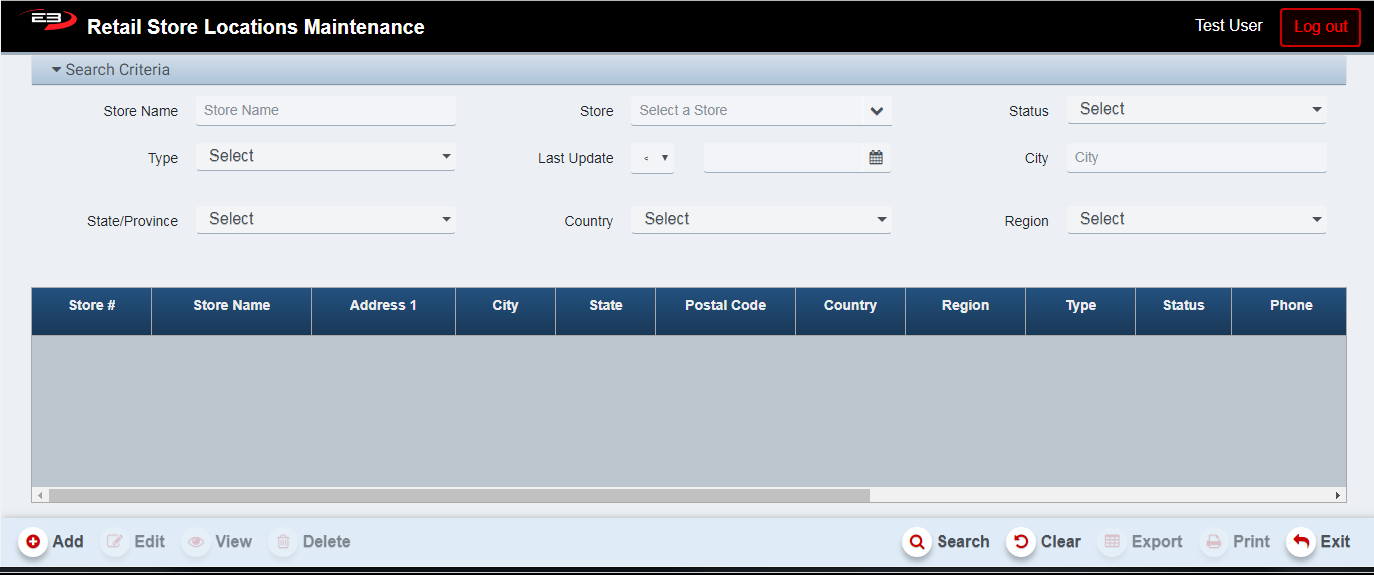
Screenshot of the Retail Store Locations Maintenance application.
- Unless you are an authorized “Corporate” user, select the (1..N) stores you have visibility to:
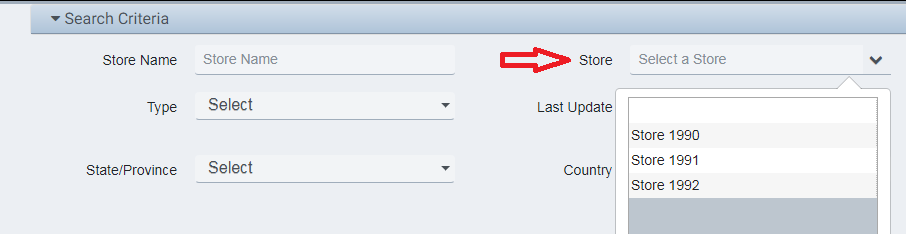
Screenshot of the Retail Store Locations Maintenance application.
-
Enter any other relevant search criteria (such as Region, State, etc.) that may help narrow down the search result set.
-
Select Search
-
Verify the search result set
-
Verify the store’s address, city, state, region, phone number, etc.
-
A sample screen result is shown below:
-
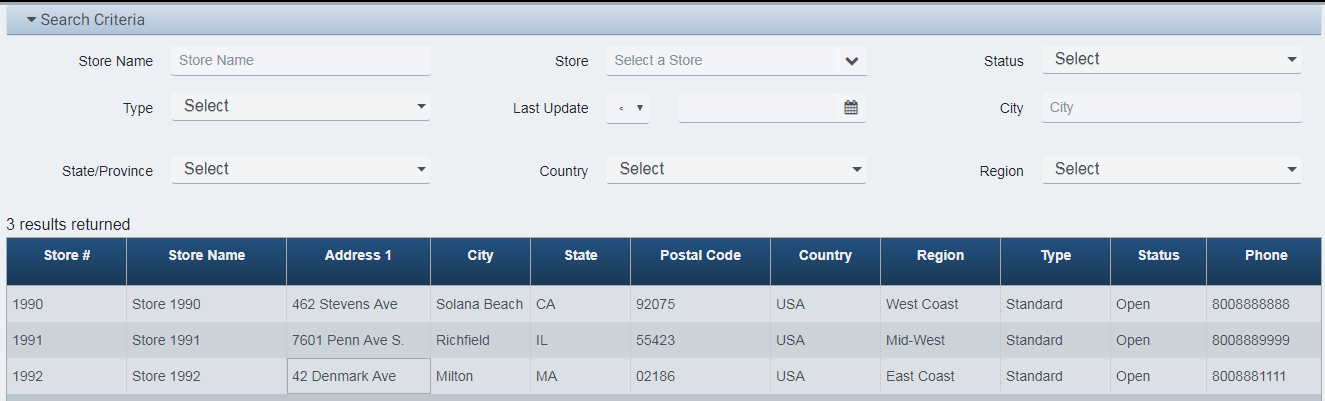
Screenshot of the Retail Store Locations Maintenance application.
-
If necessary, select and Edit (if authorized) a store to make any necessary corrections.
- If you are not authorized to perform the Edit Operation, please contact the HelpDesk.
-
If necessary
-
Select Add (If authorized) to add your store to the list.
- If you are not authorzed to perform the Add Operation, please contact the HelpDesk.
-
-
Exit the application when complete
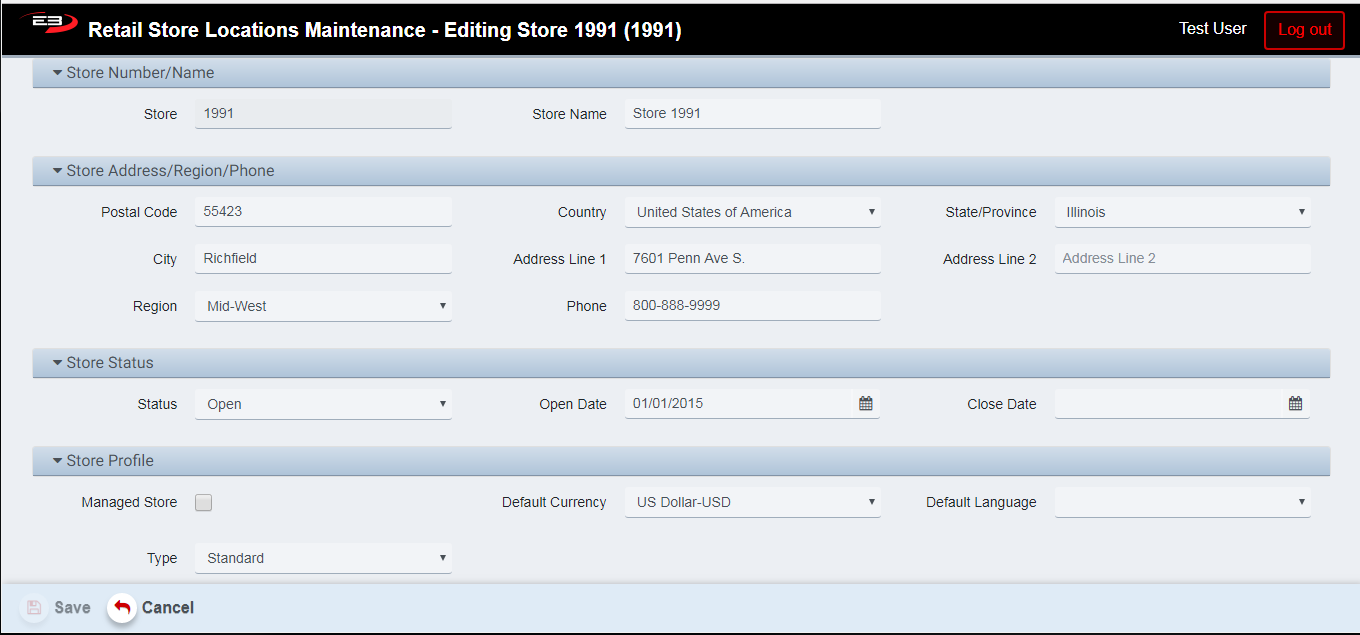
Add / Edit / View Retail Store Definition
-
Verify (or enter) the store’s address, phone number, region, status information, etc.
-
Select Save (for Add and Edit) or Cancel when done