Tender Options Maintenance
Initial Screen
-
Sign on to the BackOffice.
-
From the Configuration Management menu, select Tender Options Maintenance.
-
The initial screen as shown below appears.
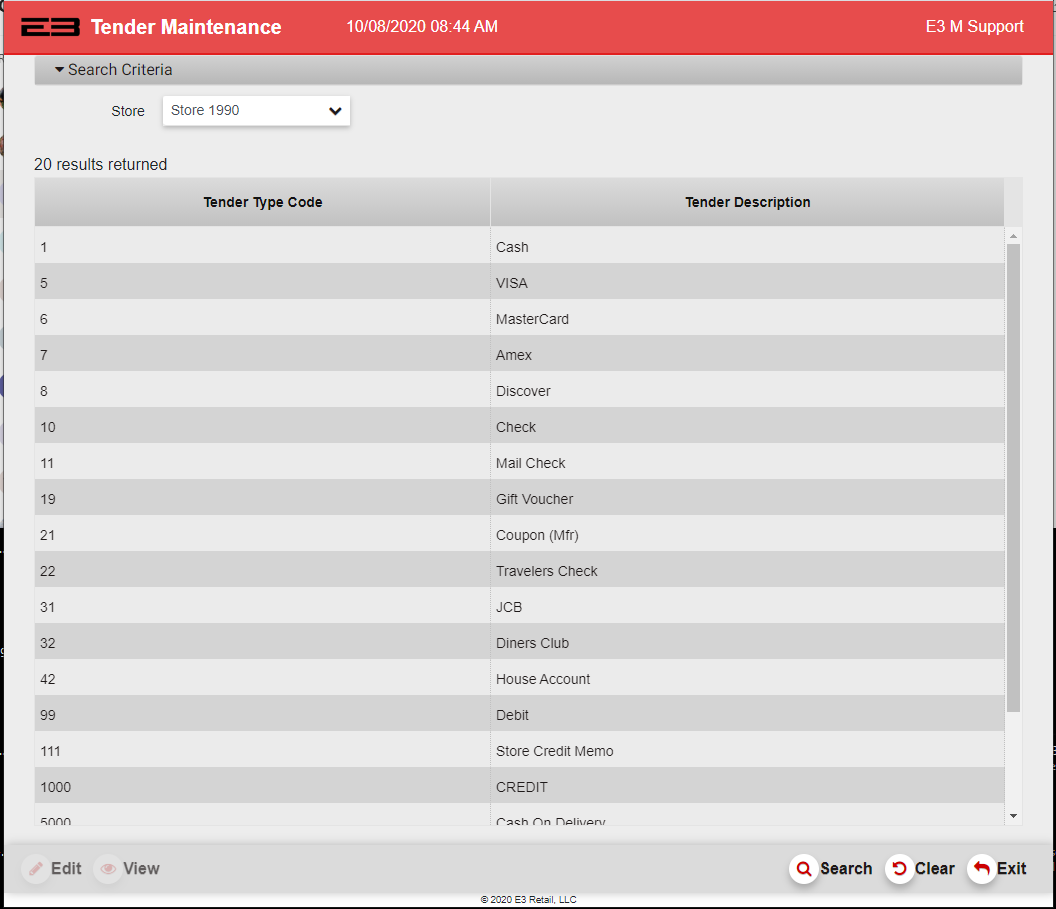
Screenshot of the TenderOptionsMaintenance application.
-
The Store number defaults if only a single store is accessible to the operator.
-
If multiple stores are accessible, select the desired store from the Store drop-list (required).
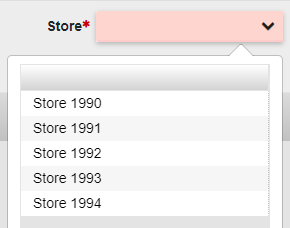
Screenshot of the TenderOptionsMaintenance application.
-
Click Search to get the parameters for the selected store.
-
Click Clear to clear the selected store and tender options if multiple store are accessible.
-
Click Exit to close the Tender Options Maintenance application and return to the back office menu.
Edit / View Tender Options
-
Once the store has been selected, the Edit and View buttons become enabled.
-
Click Edit to modify tender options.
-
Click View to simply view them.
-
When either Edit or View are selected, a set of section buttons appears at the top of the screen.

Screenshot of the TenderOptionsMaintenance application.
-
Click any of these buttons to go to the selection section in the list of tender options.
-
There are several types of options to modify or view.
a. Checkboxes are true/false values.
b. A drop-list provides a set of selections from which to choose.
c. Numeric values can either be counts or amounts.
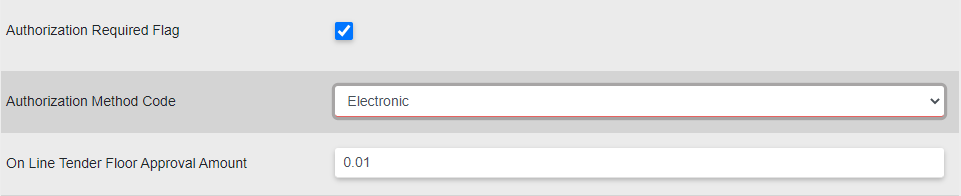
Screenshot of the TenderOptionsMaintenance application.
-
Click Cancel to discard the changes, a confirm dialog appears.
a. Click Yes to discard the changes and return to the tender type selection screen.
b. Click No to return to the edit screen.
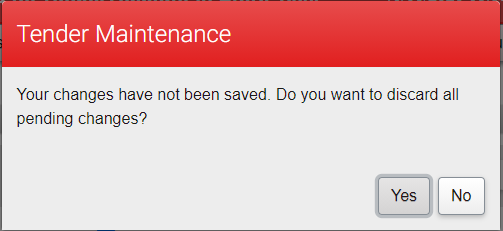
Screenshot of the TenderOptionsMaintenance application.
-
When parameters are modified, click Save to save the changes and return to the tender type selection screen.
-
On the View screen, click Exit to return to the tender type selection screen.