Audit Log
Initial (Main Search) Screen
-
From the Support > Alert Viewer menu, select Audit Log Report.
-
An initial search screen (like the one shown below) should appear.
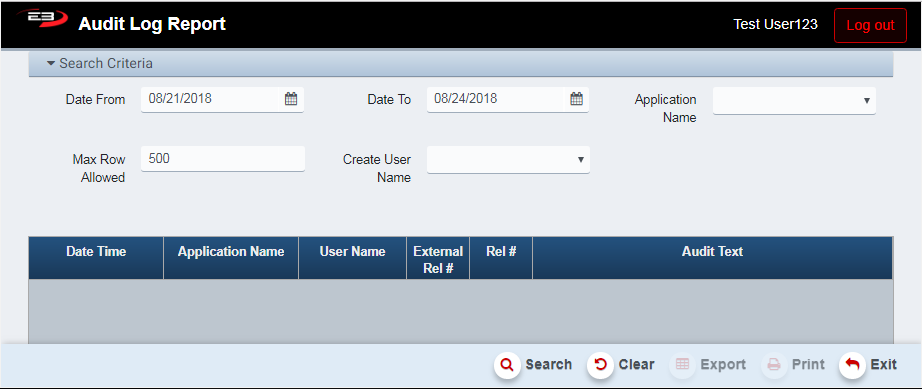
Screenshot of the Audit Log application.
-
Click Clear to reset the search criteria back to their default values.
-
The user can set Date From and Date To for filtering the result set based on a date range.
-
Date From defaults to 3 days in the past, Date To defaults to today.
-
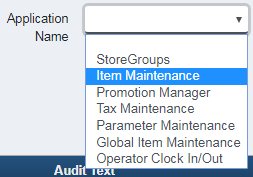
An Application Name can be selected from a dropdown menu to limit results to a single back office application.
Screenshot of the Audit Log application.
-
Max Row Allowed limits the number of audit log rows that will be returned from the search, default is 500.
-
The Create User Name field limits the results to the user that was running the application(s).
-
Click Search, the results will display like the following.

Screenshot of the Audit Log application.
Result Grid
After the search criteria have been set and the user clicks Search, the audit log entries are displayed in a grid. The columns in the result grid are:
-
Date Time - this is the date/time stamp for the audit log entry.
-
Application Name - this is the name of the audited application.
-
User Name - this is the name of the operator that was running the audited application.
-
External Rel # - this is the external relationship ID number.
-
Rel # - this is the internal relationship ID number.
-
Audit Text - this is the text from the audit log entry describing the audited activity.
Other Commands
Export
The Export function allows the user to save the report as a comma-separated values (CSV) file for use in Excel. Once you have a result set that’s filtered as desired, click the Export button. The file is saved as AuditLog_yyyy-m-d.csv in the default location, typically the Downloads folder for the user.
The Print function allows the user to save the report as an Acrobat PDF file for viewing/printing in Adobe Acrobat Reader. Once you have a result set that’s filtered as desired, click the Print button. The file is saved as AuditLogReport.pdf in the default location, typically the Downloads folder for the user.