Bank Deposit Summary
Initial (Main Search) Screen
-
From the Cash Management / Reports menu, select Bank Deposit Summary Report.
-
An initial search screen (like the one shown below) should appear:
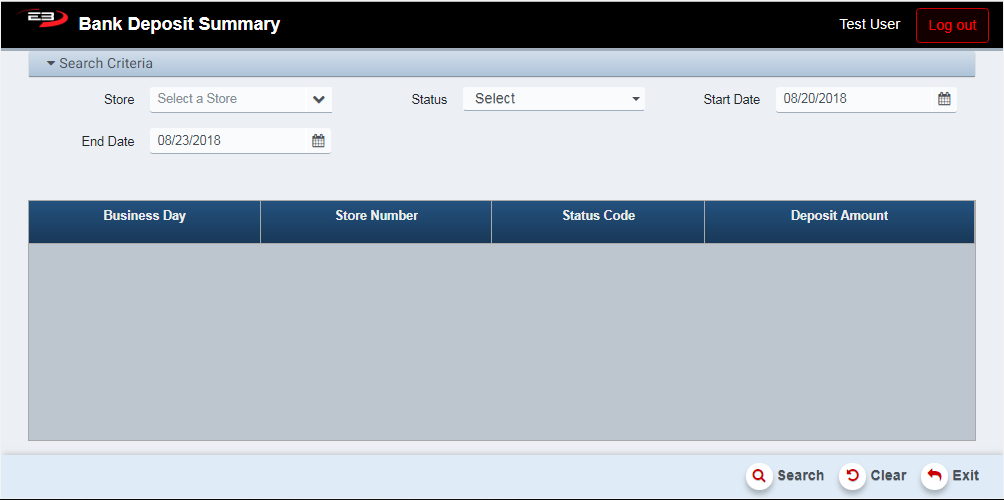
Screenshot of the Bank Deposit Summary application.
-
Click Clear to reset the search criteria back to their default values.
-
The user may select one or more stores from their store visibility list:
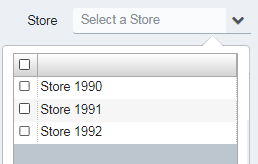
Screenshot of the Bank Deposit Summary application.
-
If the user only has visibility to a single store, that store is selected by default.
-
The user may also select one or more Status values to filter the results:
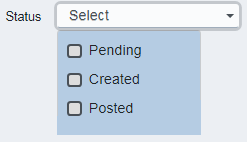
Screenshot of the Bank Deposit Summary application.
-
The default is all selected (none checked is the same as all checked).
-
The Start Date field is set to 3 days in the past but can be changed.
-
The End Date field is set to today but can be changed.
-
When the search criteria are all set, click Search to get the results and display them in the results grid:
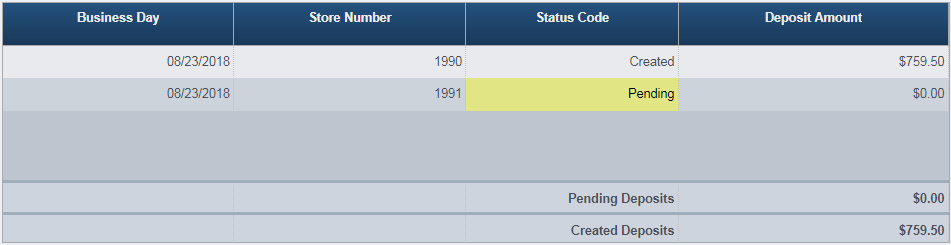
Screenshot of the Bank Deposit Summary application.
-
Notice that once results are available the Export and Print buttons become visible and enabled.
-
The summary rows at the bottom total the Pending and Created bank deposit amounts.
Results Grid
The result grid shows the status of the various tills that existed during the time between the Start Date and the End Date, filtered by Store and Status. The columns in the result grid are:
-
Business Day - the business day for the bank deposit
-
Store Number - the store to which the bank deposit belongs
-
Status Code - the status of the till; this is Pending, Created, or Posted
-
An empty bank deposit is created when a register is opened and the till is created
-
A populated bank deposit is pending when it has been finalized but not posted
-
A posted bank deposit has been posted to the merchant’s bank
-
-
Deposit Amount - the amount to be deposited into the bank account
Other Commands
Export
The Export function allows the user to save the report as a comma-separated values (CSV) file for use in Excel. Once you have a result set that’s filtered as desired, click the Export button. The file is saved as BankDepositSummary_yyyy-m-d.csv in the default location, typically the Downloads folder for the user.
The Print function allows the user to save the report as an Acrobat PDF file for viewing/printing in Adobe Acrobat Reader. Once you have a result set that’s filtered as desired, click the Print button. The file is saved as BankDepositSummary.pdf in the default location, typically the Downloads folder for the user.