Item Price Modification
Initial (Main Search) Screen
-
From the Reports > Exception Reports Menu, select Item Price Modifications.
-
An initial search screen (like the one shown below) should appear:
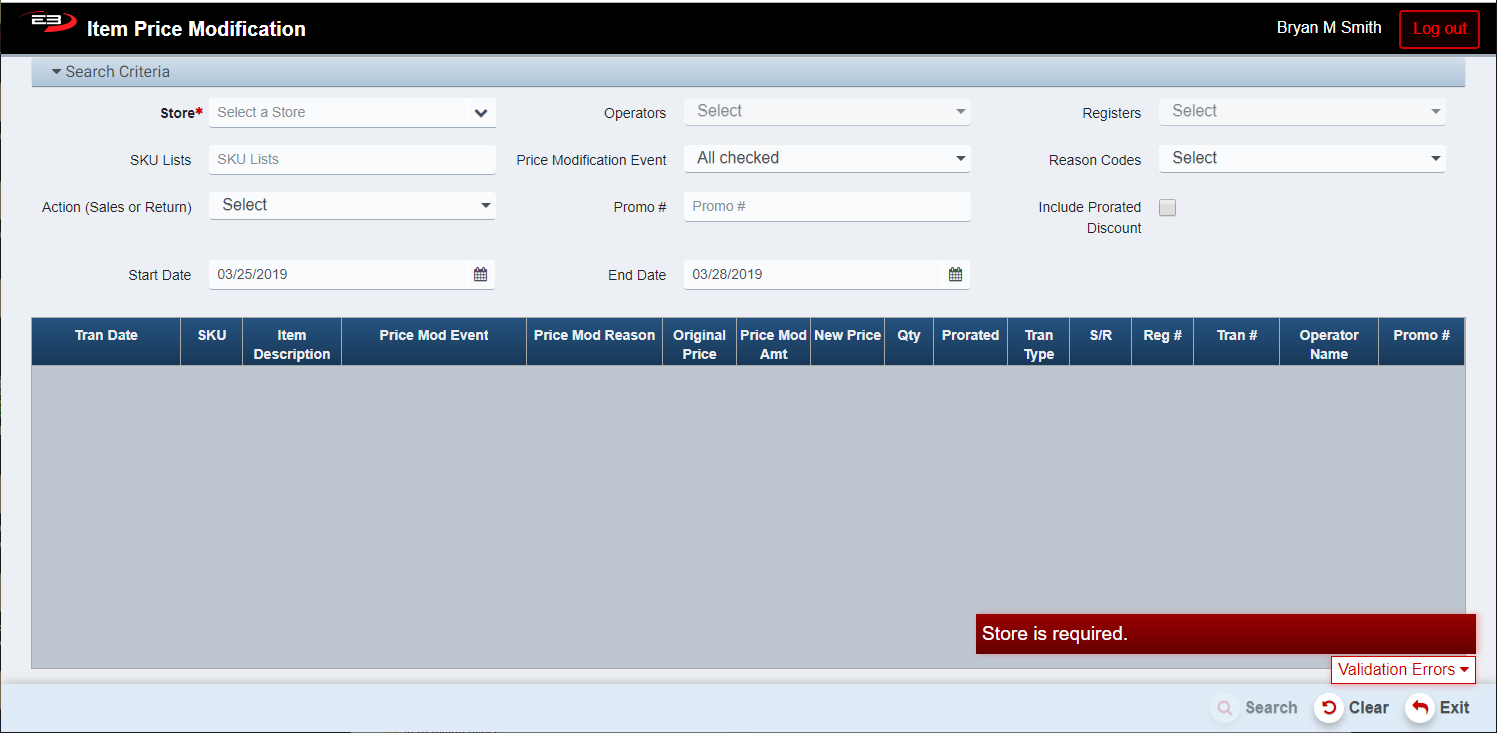
Screenshot of the Item Price Modification application.
-
Click Clear to reset the search criteria back to their default values.
-
The user must select a store from their visibility list, this will default to a single store if only one is visible.
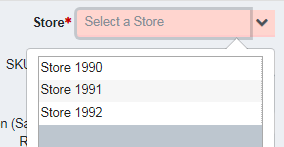
Screenshot of the Item Price Modification application.
-
The Operators and Registers lists allow the user to search based on operator and register, respectively.
-
The SKU Lists field allows the user to search based on a list SKUs, separated by commas.
-
The Price Modification Event list allows the user to search on any combination of events, defaults to all.
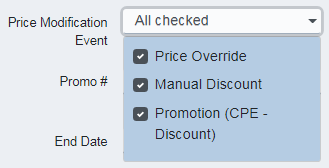
Screenshot of the Item Price Modification application.
- The Reason Codes list allows the user to search on any combination of reason codes, defaults to all.
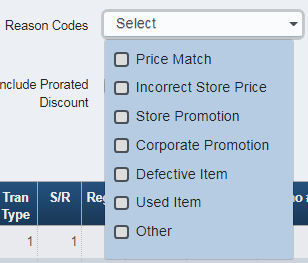
Screenshot of the Item Price Modification application.
-
The Action (Sales or Return) allows the user to search on either sales or returns, default is both.
-
The Promo # field allows the user to search on a specific promotion number.
-
The Include Prorated Discount option, when checked, includes conditional promotions with Group Discount set.
-
The user may also select a Start Date and End Date to time limit the results.
-
The Start Date defaults to three days in the past; the End Date defaults to today.
-
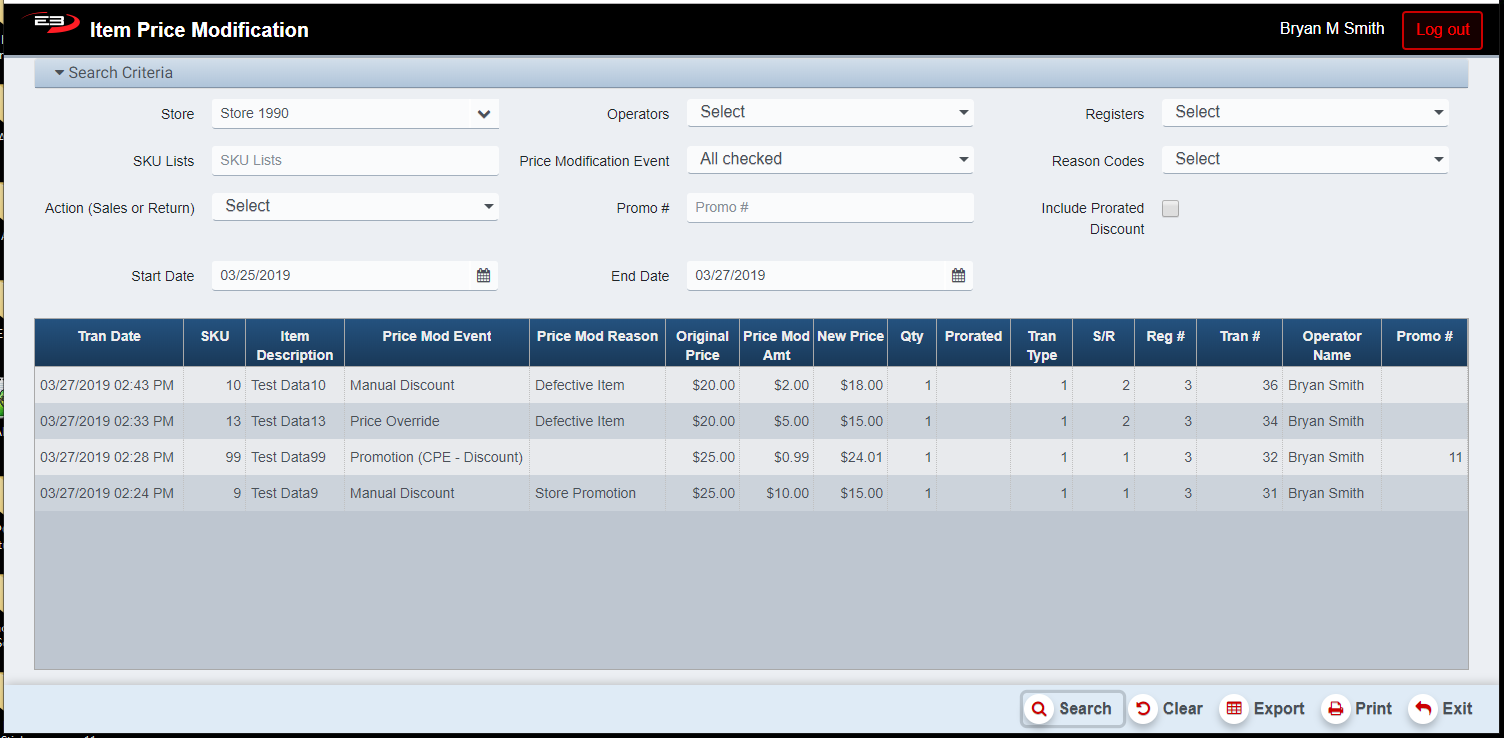
Once the store has been set along with other search criteria, click Search and the results will appear like this:
Screenshot of the Item Price Modification application.
Results Grid
The results of searching are displayed in a grid as seen above. You can click on any column heading to sort the data by that column. Here is a list of the columns and what they contain.
-
Tran Date - this is the transaction date.
-
SKU - this is the SKU of the item sold.
-
Item Description - this is the description of the item sold.
-
Price Mod Event - this is the event that modified the price (promotion, manual discount, etc).
-
Price Mod Reason - For non-promotion discounts, this is why the price was modified (e.g. Corporate Promotion)
-
Original Price - this was the original item price before the price was modified.
-
Price Mod Amt - this is the amount of price modification.
-
New Price - this is the item’s new price after modification.
-
Qty - this is how many items were modified.
-
Prorated - this is whether or not the discount was prorated among several items.
-
Tran Type - transaction type
-
S/R - Sale or Return, 1 = sale and 2 = return
-
Reg # - register number
-
Tran # - transaction number
-
Operator Name - operator name if known, otherwise operator ID
-
Promo # - the number of the promotion if the price modification was due to a promotion
Other Commands
Export
The Export function allows the user to save the report as a comma-separated values (CSV) file for use in Excel. Once you have a result set that’s filtered as desired, click the Export button. The file is saved as ItemPriceModification_yyyy-m-d.csv in the default location, typically the Downloads folder for the user.
The Print function allows the user to save the report as an Acrobat PDF file for viewing/printing in Adobe Acrobat Reader. Once you have a result set that’s filtered as desired, click the Print button. The file is saved as ItemPriceModification.pdf in the default location, typically the Downloads folder for the user.