Operator Exceptions
Initial (Main Search) Screen
-
From the Reports > Exception Reports menu, select Operator Exceptions.
-
An initial search screen (like the one shown below) should appear.
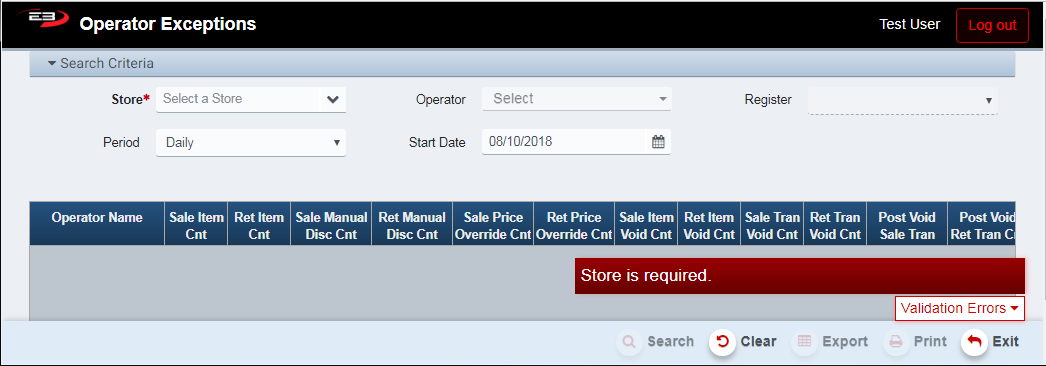
Screenshot of the Operator Exceptions application.
-
Click Clear to reset the search criteria back to their default values.
-
The user must select a store from their store visibility list.
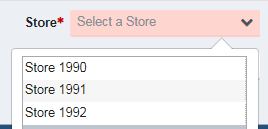
Screenshot of the Operator Exceptions application.
-
The user may select one or more operators from the Operator drop-list by checking the box next to the name.
-
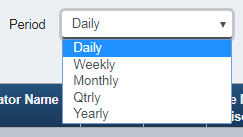
The user may select a Period and Start Date to filter the results, default period is Daily starting today.
-
Periods are Daily, Weekly, Monthly, Qtrly, and Yearly.
-
The Start Date has a default value for each of the period values and may also be manually set.
Screenshot of the Operator Exceptions application.
- Click Search, the results will display like the following:
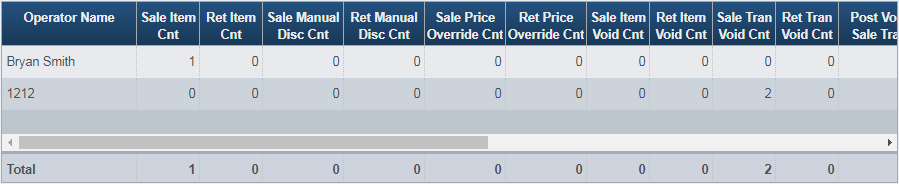
Screenshot of the Operator Exceptions application.
- If there is data from multiple operators, a summary row is added with the totals from all operators.
Results Grid
The results grid always contains the following columns, each operator gets a row in the results.
-
Operator Name - the name or ID of the operator
-
Sales Item Count - the number of items sole
-
Returns Item Count - the number of items returned
-
Sales Manual Disc Count - the number of items sold with a manual discount
-
Returns Manual Disc Count - the number of items returned with a manual discount
-
Sales Price Override Count - the number of items sold with a price override
-
Returns Price Override Count - the number of items returned with a price override
-
Sales Item Void Count - the number of sales items that were voided in the transaction
-
Returns Item Void Count - the number of return items that were voided in the transaction
-
Sales Tran Void Count - the number of sales transactions that were voided
-
Returns Tran Void Count - the number of return transactions that were voided
-
Post Void Sales Tran Count - the number of sales transactions that were post voided
-
Post Void Returns Tran Count - the number of return transactions that were post voided
-
Tax Exempt Sales Tran Count - the number of tax exempt sales transactions
-
Tax Exempt Returns Tran Count - the number of tax exempt return transactions
-
Suspended Sales Tran Count - the number of suspended sales transactions
-
Suspended Returns Tran Count - the number of suspended return transactions
-
Resumed Sales Tran Count - the number of resumed sales transactions
-
Resumed Returns Tran Count - the number of resumed return transactions
-
No Sale Count - the number of no sale transactions
-
Manual Return Item Count - the number of items returned without using integrated returns
Other Commands
Export
The Export function allows the user to save the report as a comma-separated values (CSV) file for use in Excel. Once you have a result set that’s filtered as desired, click the Export button. The file is saved as OperatorExceptions_yyyy-m-d.csv in the default location, typically the Downloads folder for the user.
The Print function allows the user to save the report as an Acrobat PDF file for viewing/printing in Adobe Acrobat Reader. Once you have a result set that’s filtered as desired, click the Print button. The file is saved as OperatorExceptions.pdf in the default location, typically the Downloads folder for the user.