Operator Variance
Initial (Main Search) Screen
The Operator Variance Tracker report provides a list of operator-related explanations of variances between expected amounts and counted amounts when a register’s till is balanced.
-
From the Cash Management / Reports menu, select Operator Variance Tracker.
-
An initial search screen (like the one shown below) should appear.
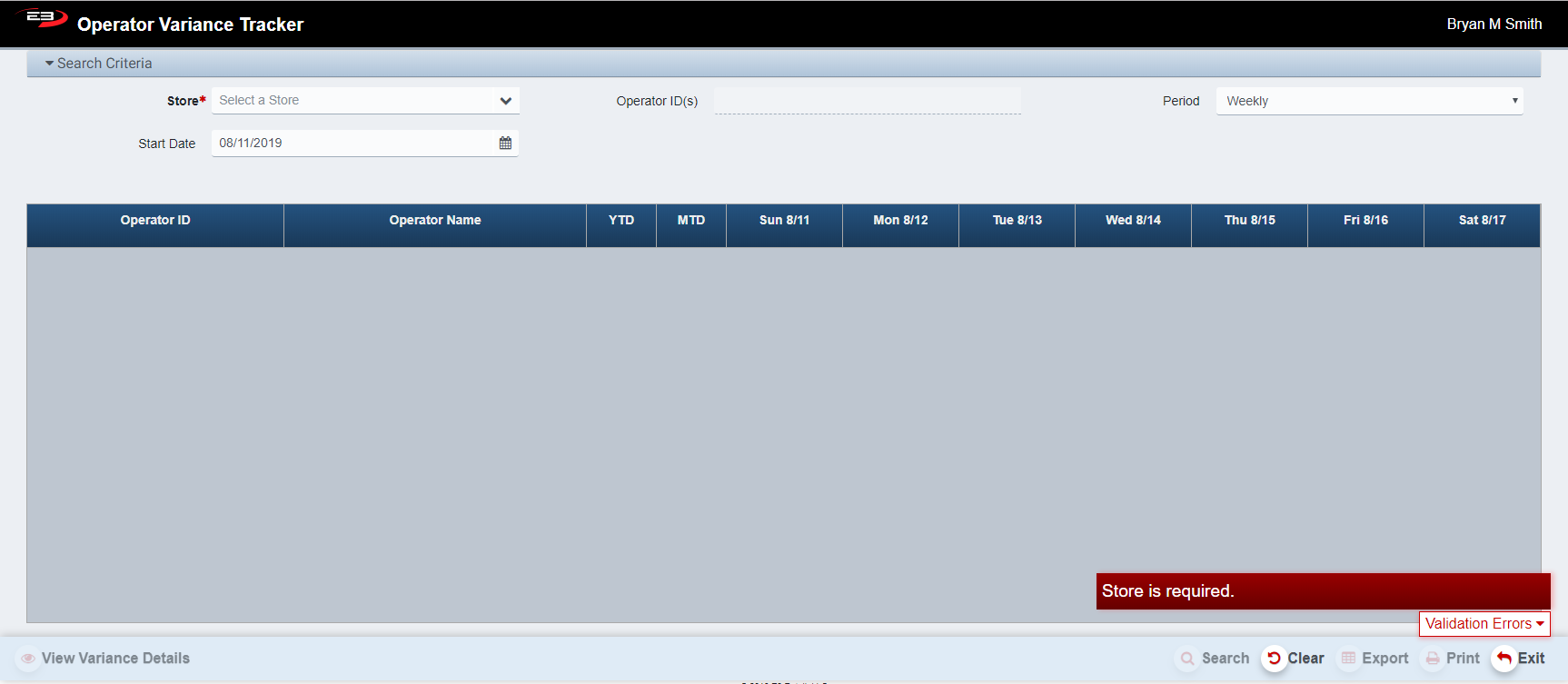
Screenshot of the Operator Variance application.
-
Click Clear to reset the search criteria back to their default values.
-
The Store number is a required value, pull down the list and select the desired store.
-
Only a single store may be selected.
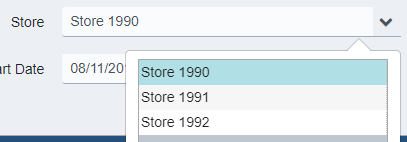
Screenshot of the Operator Variance application.
-
One or more operators may be selected from the Operator ID(s) list.
-
Check the box next to the desired operator(s) to select.
-
If no operator is selected, then data for all operators is displayed.
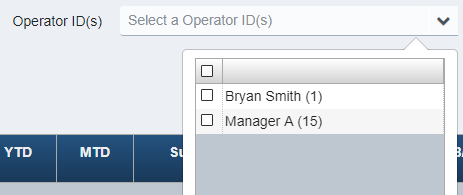
Screenshot of the Operator Variance application.
-
The user may select Period and Start Date values to filter the results.
-
The available periods are Weekly, Monthly, and Yearly, the default period is Weekly.
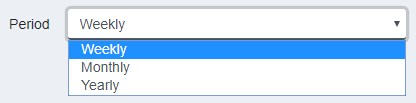
Screenshot of the Operator Variance application.
-
The Start Date of the selected Period may also be set.
-
The default value for each period is the first day of the Period, Sunday is the starting day of a Weekly period.
-
When the required store number is selected, the Search button becomes enabled.
-
Click Search to get the variance results based on the selected search criteria.
-
For a Weekly period, the following fields are displayed in the results:

Screenshot of the Operator Variance application.
- For a Monthly period, the following fields are displayed in the results:

Screenshot of the Operator Variance application.
- For a Yearly period, the following fields are displayed in the results:

Screenshot of the Operator Variance application.
-
When a row is selected in the search results, the View Variance Details button becomes enabled.
-
When data is present in the search results, the Export and Print buttons become enabled.
Other Commands
View Variance Details
When a row is selected in search results by clicking on the row, clicking on the View Variance Details button provides details on all variances for the selected operator within the selected period. For example, the following result row shows a variance of -$2.41 (short) for Operator ID 1 on 08/15.

Screenshot of the Operator Variance application.
Selecting this row in the results and then clicking the View Variance Details button gives the following details.

Screenshot of the Operator Variance application.
The following fields are seen in the variance detail lines:
-
Variance Date - the business day on which the variance was logged
-
Variance Amount - the amount of the variance; negative is short, positive is over
-
Reason Code - the reason for the variance, see below
-
Single/Multiple - the variance was attributed to single or multiple operators
-
Operator ID(s) - one or more operator IDs associated with this variance
-
Till ID - the ID number of the till that had the variance
-
Tender Type - the tender type associated with this variance (cash, check, travelers check)
-
Register - the register number on which the variance was logged
-
Tran # - the transaction number associated with the variance, if any
-
Date - the business date on which the variance was logged
-
Explanation - the explanation for why the variance occurred
The following Reason Codes may be seen in Operator Variance Tracking details.
-
Cashier Error - Multiple User
-
Check Taken for Wrong Amount
-
Cashier Error - Single User
-
Check Missing or Lost
-
Offset Another Day
-
Other
Export
The Export function allows the user to save the report as a comma-separated values (CSV) file for use in Excel. Once you have a result set that’s filtered as desired, click the Export button. The file is saved as OperatorVariance_yyyy-m-d.csv in the default location, typically the Downloads folder for the user.
The Print function allows the user to save the report as an Acrobat PDF file for viewing/printing in Adobe Acrobat Reader. Once you have a result set that’s filtered as desired, click the Print button. The file is saved as OperatorVariance.pdf in the default location, typically the Downloads folder for the user.