Price Not On File
Initial (Main Search) Screen
-
From the Reports > Exception Reports menu, select PLU Not On File.
-
An initial search screen (like the one shown below) should appear.
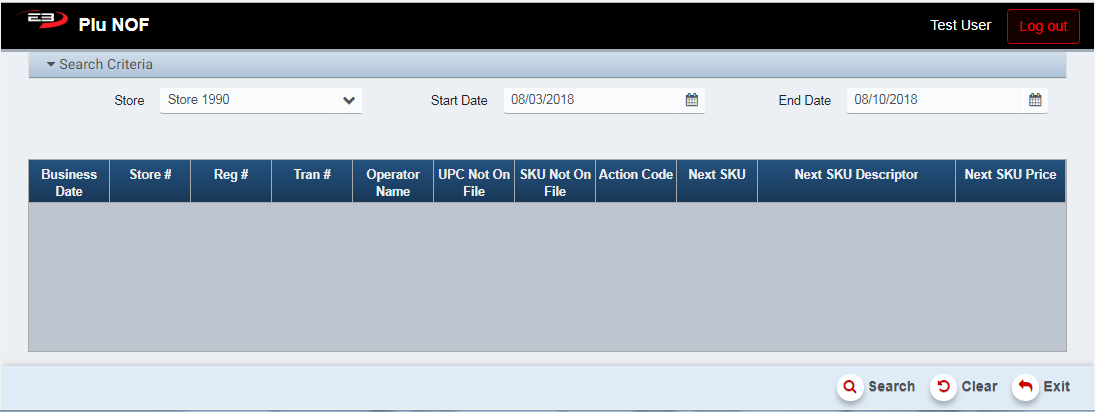
Screenshot of the Price Not On File application.
-
Click Clear to reset the search criteria back to their default values.
-
The user may select a store (or stores) from their store visibility list.
-
If only one store is visible to the user, that store is selected by default.
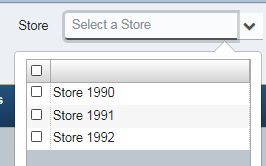
Screenshot of the Price Not On File application.
-
The user may select a Start Date and End Date to filter the results.
-
The Start Date defaults to 1 week in the past, the End Date defaults to today’s date.
-
Click Search, the results will display like the following.

Screenshot of the Price Not On File application.
- If there are results from the search, the Export and Print buttons are made visible and enabled.
Results Grid
The results grid always contains the following columns, with each NOF event getting a row in the results.
-
Business Date - this is the business date of the event.
-
Store # - this is the store number for the event.
-
Reg # - this is the register for the transaction of the event.
-
Tran # - this is the transaction number of the event.
-
Operator Name - this is the name or operator ID of the operator signed on to the register.
-
UPC Not On File - this is the item’s UPC (barcode) which was not found.
-
SKU Not On File - this is the item’s SKU which was not found.
-
Action Code - this is either 1 for sale or 2 for return.
-
Next SKU - this is the SKU of the item that was not found.
-
Next SKU Descriptor - this is the description of the item entered by the operator.
-
Next SKU Price - this is the price of the item entered by the operator.
Other Commands
Export
The Export function allows the user to save the report as a comma-separated values (CSV) file for use in Excel. Once you have a result set that’s filtered as desired, click the Export button. The file is saved as Plu NOF_yyyy-m-d.csv in the default location, typically the Downloads folder for the user.
The Print function allows the user to save the report as an Acrobat PDF file for viewing/printing in Adobe Acrobat Reader. Once you have a result set that’s filtered as desired, click the Print button. The file is saved as PluNOF.pdf in the default location, typically the Downloads folder for the user.