Tender Detail
Initial (Main Search) Screen
-
From the Cash Management / Reports menu, select Tender Detail Report.
-
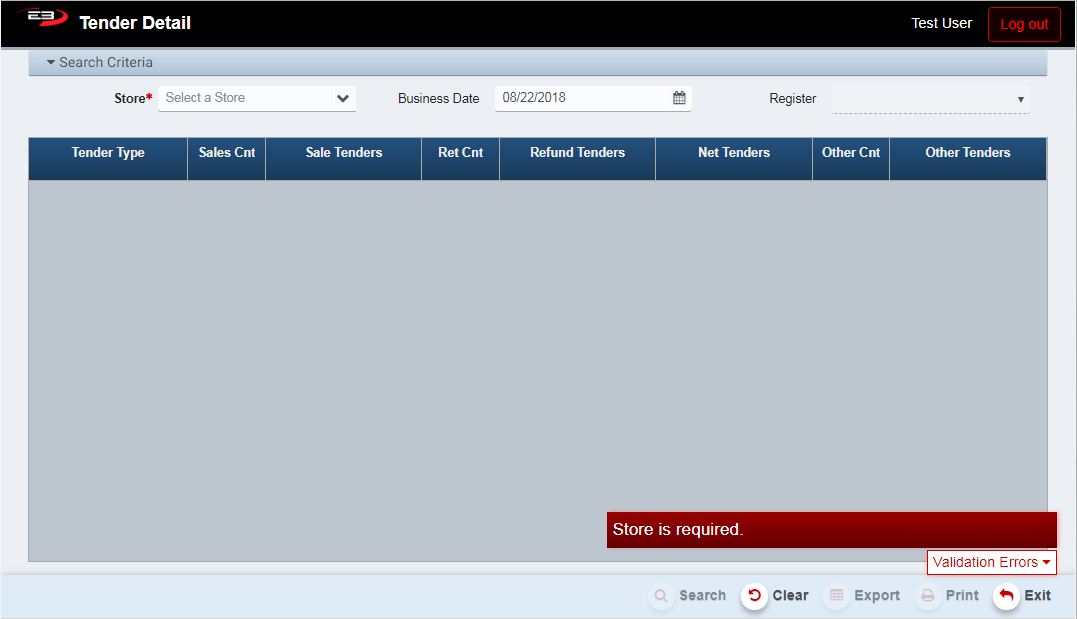
An initial search screen (like the one shown below) should appear.
Screenshot of the Tender Detail application.
-
Click Clear to reset the search criteria back to their default values.
-
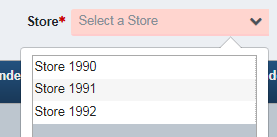
The user must select a store from their store visibility list.
Screenshot of the Tender Detail application.
-
The user may change the Business Date field to view tender detail from different business dates.
-
The user may select a specific Register to show data for that register only.
-
When the search criteria are all set, click Search to get the results and display them in the results grid.
-
See the next section for summary and detail result grids.
Result Grid
There are two types of result grids: Summary and Detail. The Summary grid shows the information for all tender types, while the Detail grids show the information for the selected tender type (e.g. cash, check, etc.) To display the Summary grid, click on the Summary tab after the store, date, and register (optional) values are set; to display Detail grids, click on one of the tender type tabs (Cash, Credit Card, etc.) Both Summary and Detail results have a totals line at the bottom of the grid that displays the sum of the values in the column above.

Screenshot of the Tender Detail application.
Summary Tab
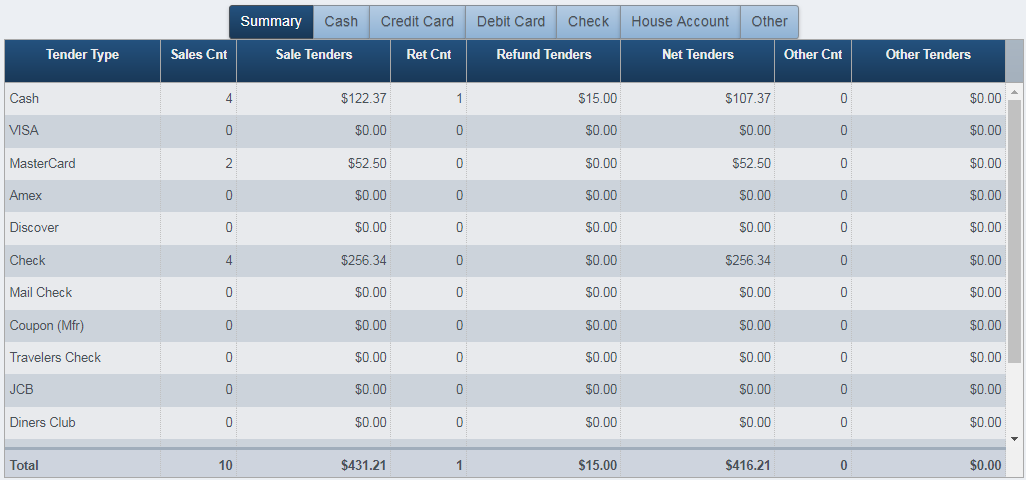
The Summary tab shows results that aggregate all transaction counts and amounts. In addition to the rows for each tender type, there is a summary row at the bottom of the table that aggregates the results for all tender types.
Screenshot of the Tender Detail application.
-
Tender Type - which tender type (cash, credit, check, etc.).
-
Sales Cnt - count of how many sales used this tender.
-
Sale Tenders - amount of this tender used for sales.
-
Ret Cnt - count of how many returns used this tender.
-
Refund Tenders - amount of this tender used for returns.
-
Net Tenders - sale tenders amount minus refund tenders amount.
-
Other Cnt - count of how many other transactions used this tender (i.e. neither sale nor return).
-
Other Tenders - amount of this tender used in other transactions.
Detail Tabs
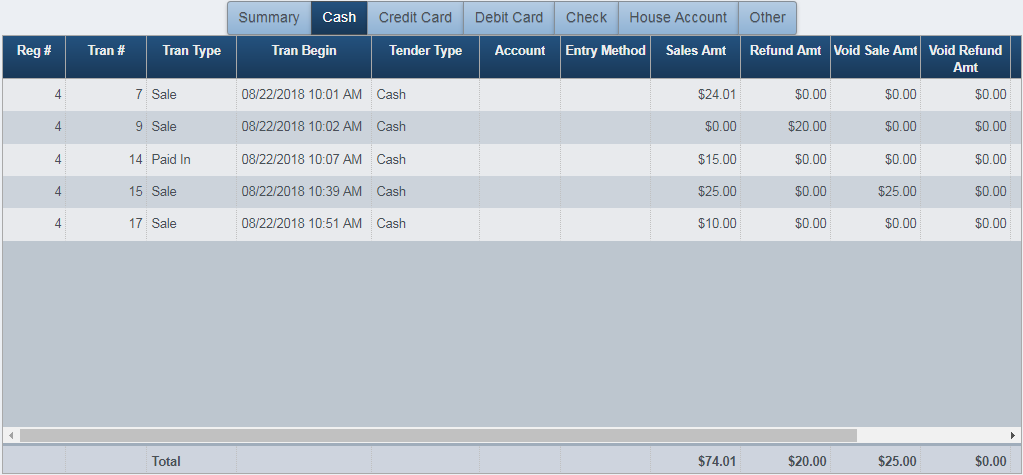
The various tender-specific tabs show transaction-based result rows for the selected tender type. This example displays the tab for Cash tender. In addition to the rows for each transaction, there is a summary row at the bottom of the table that aggregates the results for all transactions for the selected tender type.
Screenshot of the Tender Detail application.
-
Reg # - the register number for the transaction.
-
Tran # - the transaction number for the transaction.
-
Tran Type - the transaction type: Sale, Return, Paid In, etc.
-
Tran Begin - date/time stamp for the start of the transaction.
-
Tender Type - tender type used for the transaction, credit cards are named (e.g. MasterCard).
-
Account - account number for a credit card, masked with asterisks.
-
Entry Method - how the card data was entered: Keyed, MSR, EMV.
-
Sales Amt - the amount for a sale transaction.
-
Refund Amt - the amount for a return transaction.
-
Void Sale Amt - the amount if the sale transaction was post-voided.
-
Void Refund Amt - the amount if the return transaction was post-voided.
-
Net Sales - total net sales amount (summary line only).
-
Net Ret - total net return amount (summary line only).
-
Net Total - total net tender amount (summary line only).
View EJ
If you are viewing a detail tab and select one of the result rows, the View EJ button becomes enabled. Clicking this button takes you to the Electronic Journal viewer to examine the EJ entries for Journal and Receipt for this transaction.
Click Exit to return to the Tender Detail Report.
Other Commands
Export
The Export function allows the user to save the report as a comma-separated values (CSV) file for use in Excel. Once you have a result set that’s filtered as desired, click the Export button.
-
The filename for a summary report is TenderDetail_Summary_[store#]_[business_date].csv
-
The filename for a detail report is TenderDetail_[tender][store#][business_date].csv
These files are saved in the default location, typically the Downloads folder for the user.
The Print function allows the user to save the report as an Acrobat PDF file for viewing/printing in Adobe Acrobat Reader. Once you have a result set that’s filtered as desired, click the Print button.
-
The filename for a summary report is TenderDetail_Summary_[store#]_[business_date].pdf
-
The filename for a detail report is TenderDetail_[tender][store#][business_date].pdf
These files are saved in the default location, typically the Downloads folder for the user.